Shelf Lighting

A few weeks ago, my parents picked up some new shelves they wanted to use for decorations. While helping them set everything up, my father and I quickly realized the shelves would look much nicer with lighting. LED strips immediately came to mind — simple, clean, and easy to control with an ESP8266 running ESPHome.

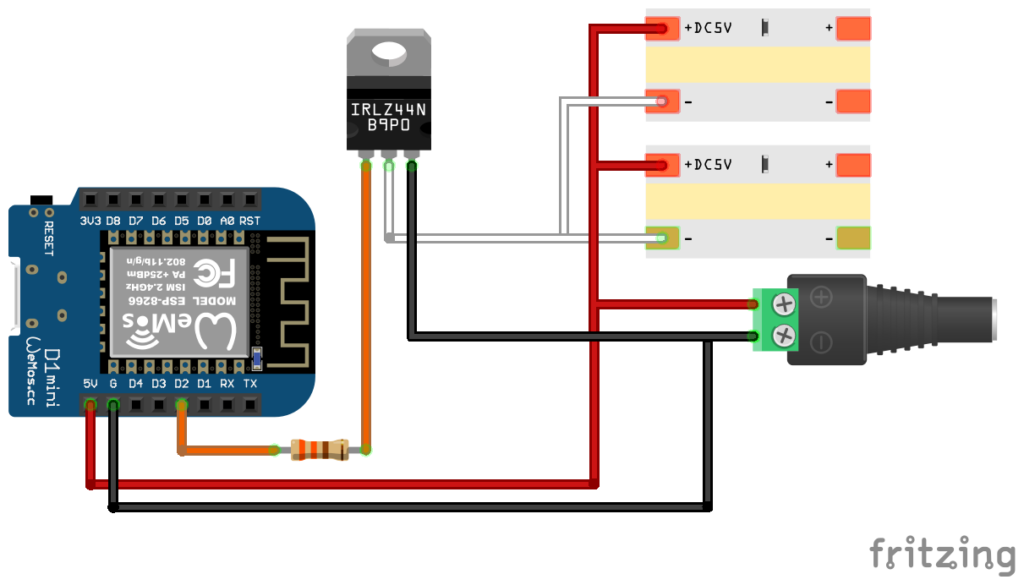
I sketched out a quick design and got to work. The only oddity was that I ended up using an IRLZ44N MOSFET, which is wildly oversized for this project but the best choice I could find for 3.7v logic control. Because of the shelf layout, I also decided to run two LED strips in parallel.
Materials

Most of the parts came from my existing stash, but I did need to buy the LED strip, power supply and transistors.

  • ESP8266 (Wemos D1 Mini clone) – pack of 10 from Amazon
  • 6.56FT 640LEDs 5V LED Strip – from Amazon
  • 5V 3A 15W Power Supply Adapter – from Amazon
  • IRLZ44N MOSFET Transistor – pack of 10 from Amazon
  • 330 ohm Resistor – pack of 100 from Amazon
  • 22 AWG solid core hookup wire – for sensor connections (from Amazon)
  • Breadboard & jumper wires – for prototyping
  • Soldering iron – to make permanent connections
  • 3D printer (Creality CR-6 SE) – for controller and sensor cases

Optional but nice to have:

  • Heat shrink tubing – to clean up exposed joints (from Amazon)
  • JST connectors & crimping tool – for detachable, neat wiring (from Amazon)
  • Proto board – for organizing components and wiring (from Amazon)
  • Mount Screw Terminal Block Connector – for cleaner proto board connections (from Amazon)

Flashing the Board

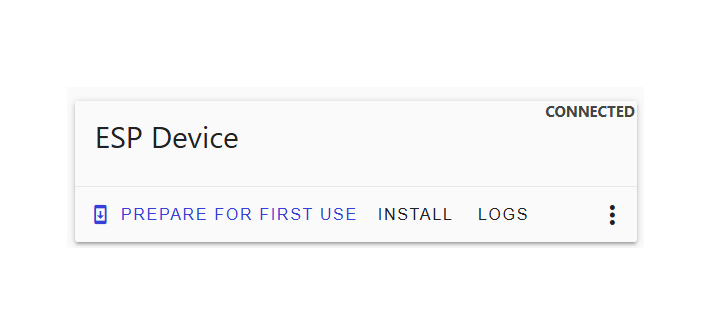
Once everything arrived, I grabbed a D1 Mini from my parts bin and started flashing ESPHome. Historically, I’ve had trouble getting ESPHome to talk to CH340‑based boards on Windows 11 — and this time was no different. Last time I had pulled out an old Windows 10 laptop to flash it but I decided to try to do some more digging and fix my Windows 11 setup.

After digging around, I found a Reddit thread recommending a different CH340G driver version. The GitHub repo looked sketchy at first, but it turned out to be from the official NodeMCU account. I uninstalled the old driver, installed the new one, and suddenly the ESPHome Web Flasher connected instantly.

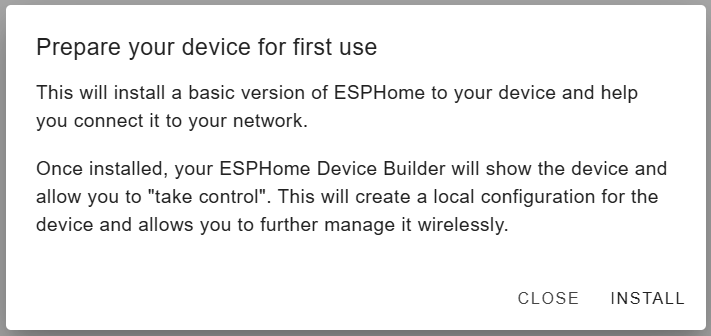
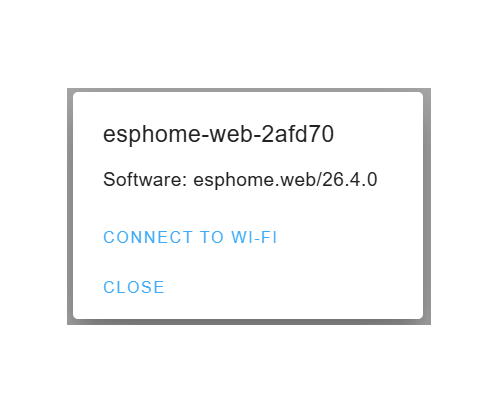
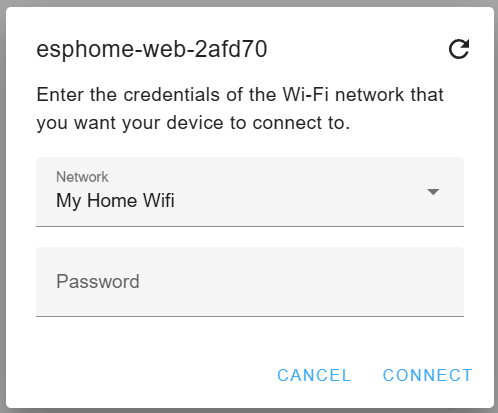
I flashed the initial ESPHome image, connected it to Wi‑Fi, and moved on.
Configuring the Board

Initial Setup

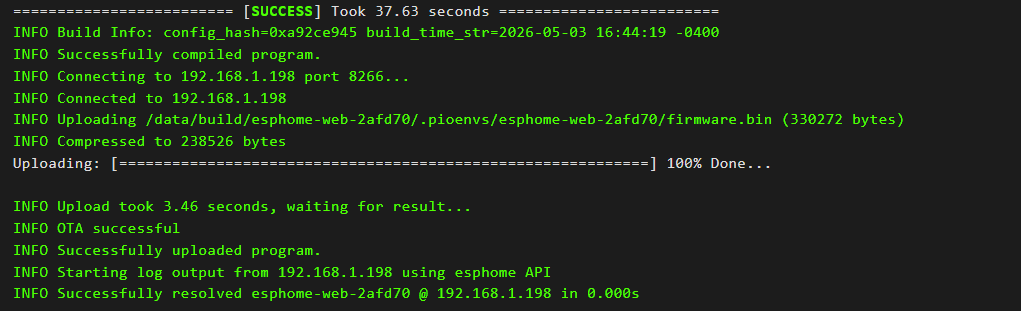
With the device online, ESPHome Device Builder immediately discovered it. I took control of the device, renamed it, compiled the config, and flashed it OTA.
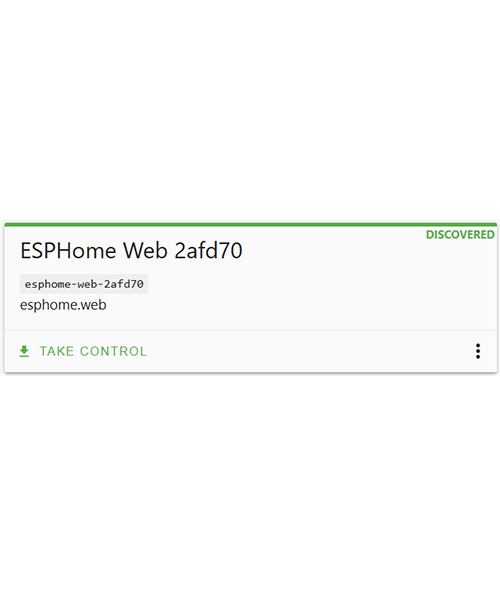
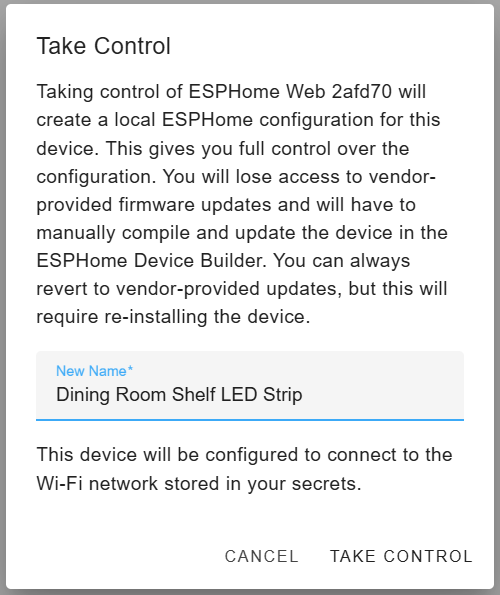
With the flash complete, it was time to customize the configuration. I added in some basic sensors for wifi signal and uptime as well as giving it a static IP (this required configuring a DHCP reservation in the router). The flashing tool usually relies on mDNS to discover devices but I have that disabled so instead I use a static IP.

Here is my initial config (most of these are self explanatory, but I’ve gone through what each of these is in detail in a previous post).
esphome:
  name: "esp-dining-room-shelf-light"
  friendly_name: Dining Room Shelf LED Strip
  min_version: 2025.11.0
  name_add_mac_suffix: false

esp8266:
  board: d1_mini

# Enable logging
logger:

# Enable Home Assistant API
api:
  encryption:
    key: !secret api_key

# Allow Over-The-Air updates
ota:
  platform: esphome
  password: !secret ota_password

wifi:
  ssid: !secret wifi_ssid
  password: !secret wifi_password
  manual_ip:
    static_ip: 192.168.1.198
    gateway: 192.168.1.1
    subnet: 255.255.255.0
  ap:
    password: !secret ap_password

binary_sensor:
 - platform: status
   name: "Controller Status"

sensor:
  - platform: wifi_signal
    name: "WiFi Signal Sensor"
  - platform: uptime
    type: seconds
    name: Uptime Sensor

text_sensor:
  - platform: wifi_info
    ssid:
      name: ESP Connected SSID
    mac_address:
      name: ESP Mac Wifi Address
  - platform: version
    name: "ESPHome Version"
    hide_timestamp: true

Home Assistant Configuration

With the basic sensors set up, it was time to bring the device into Home Assistant. I went to Settings -> Devices & Services and since I already had the ESPHome integration installed, Home Assistant immediately detected the new board.
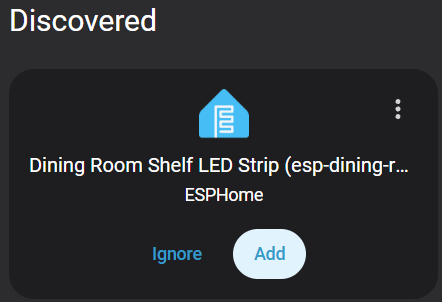
I clicked the button to add the new device, assigned a location and then added it to Home Assistant. I then went to the device page where I was able to see the new device and all the sensors I had configured. At this point, the board was talking to Home Assistant but it couldn’t control anything yet.
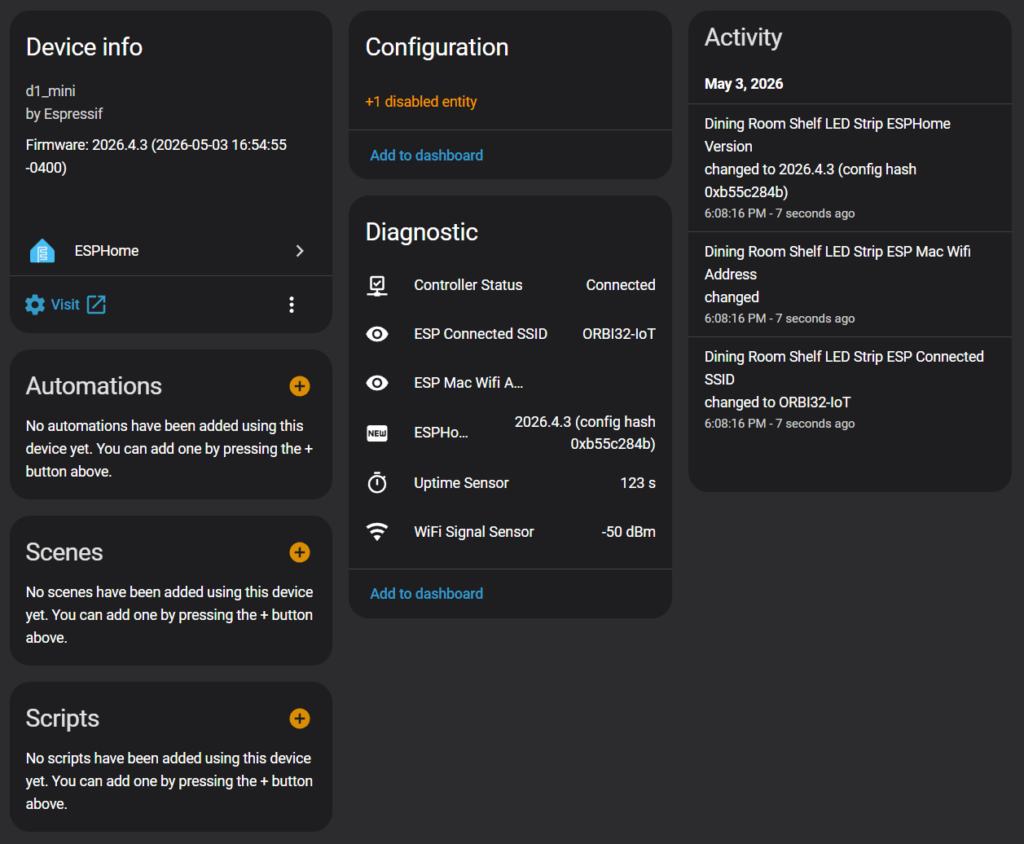
Configuring the Light Entity

With the basic tests complete, it was time to configure the light entity so that the board would be able to control an LED strip. Back in “ESP Home Device Builder” I added a PWM output on GPIO4 (D2) and created a monochromatic light entity tied to that output.

# --- OUTPUT DRIVER ---
output:
  - platform: esp8266_pwm
    id: white_strip_output
    pin: GPIO4  	 # D2
    frequency: 1000 Hz   # Smooth dimming, no audible noise

# --- LIGHT ENTITY ---
light:
  - platform: monochromatic
    name: "Dining Room Shelf LED Strip"
    output: white_strip_output
    default_transition_length: 0.3s
    gamma_correct: 1.0      # COB strips look more natural with gamma 1.0
    restore_mode: RESTORE_AND_OFF

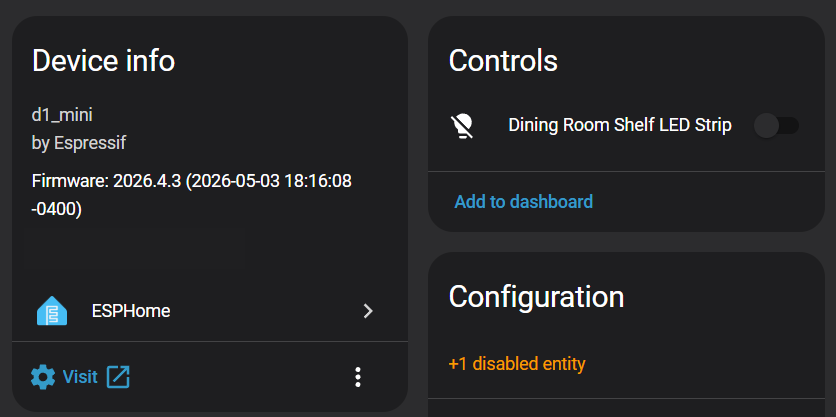
After compiling and flashing, Home Assistant showed the new light entity (clicking on it displays the dimmer).
Hardware Setup

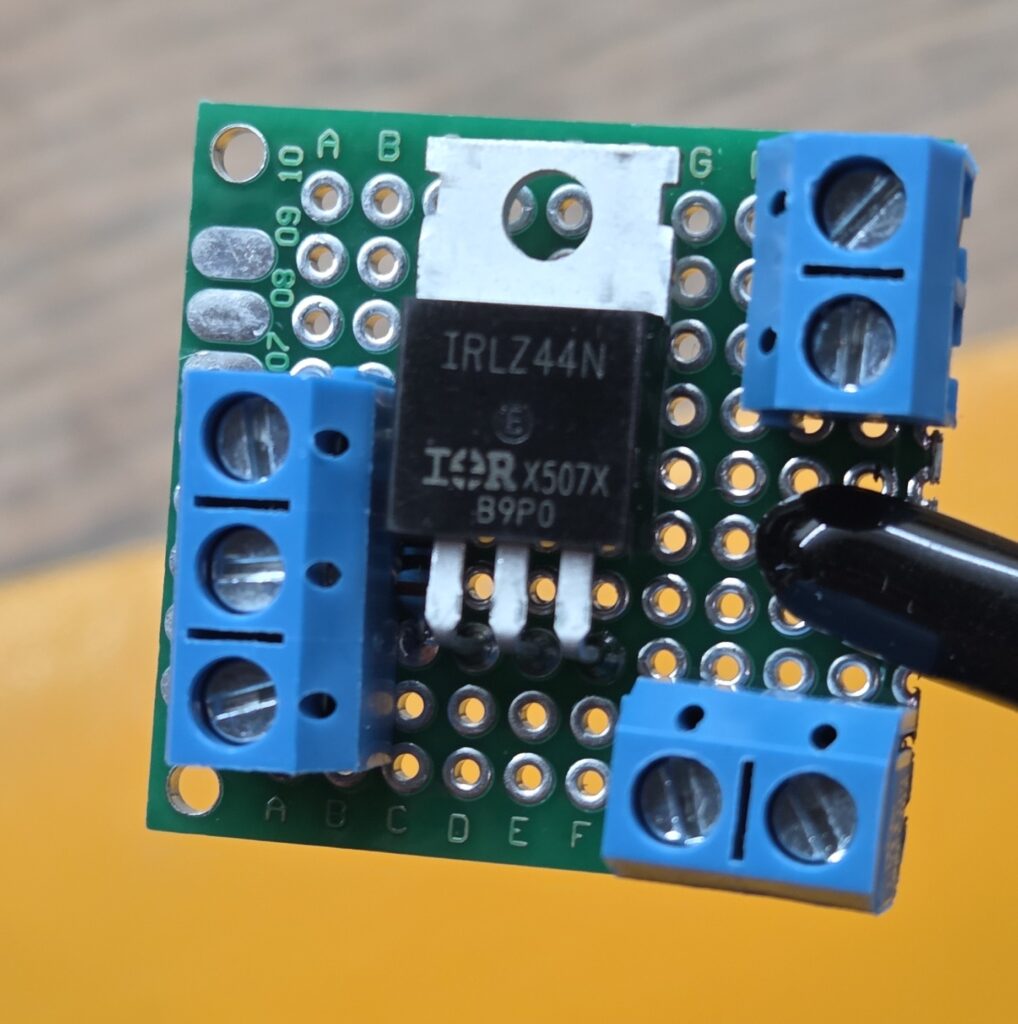
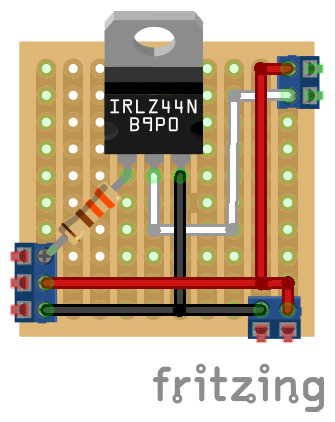
With the software side complete, I moved on to the hardware. I decided to mount everything on a small proto board using screw terminals for clean wiring. After some layout planning, I settled on a final arrangement.
Soldering the Board

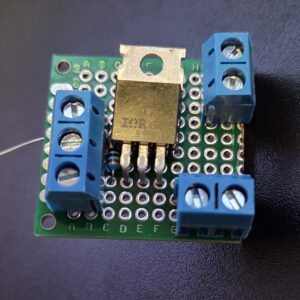
I started by placing all the components on the proto board to confirm spacing and plan out the wiring on the back.
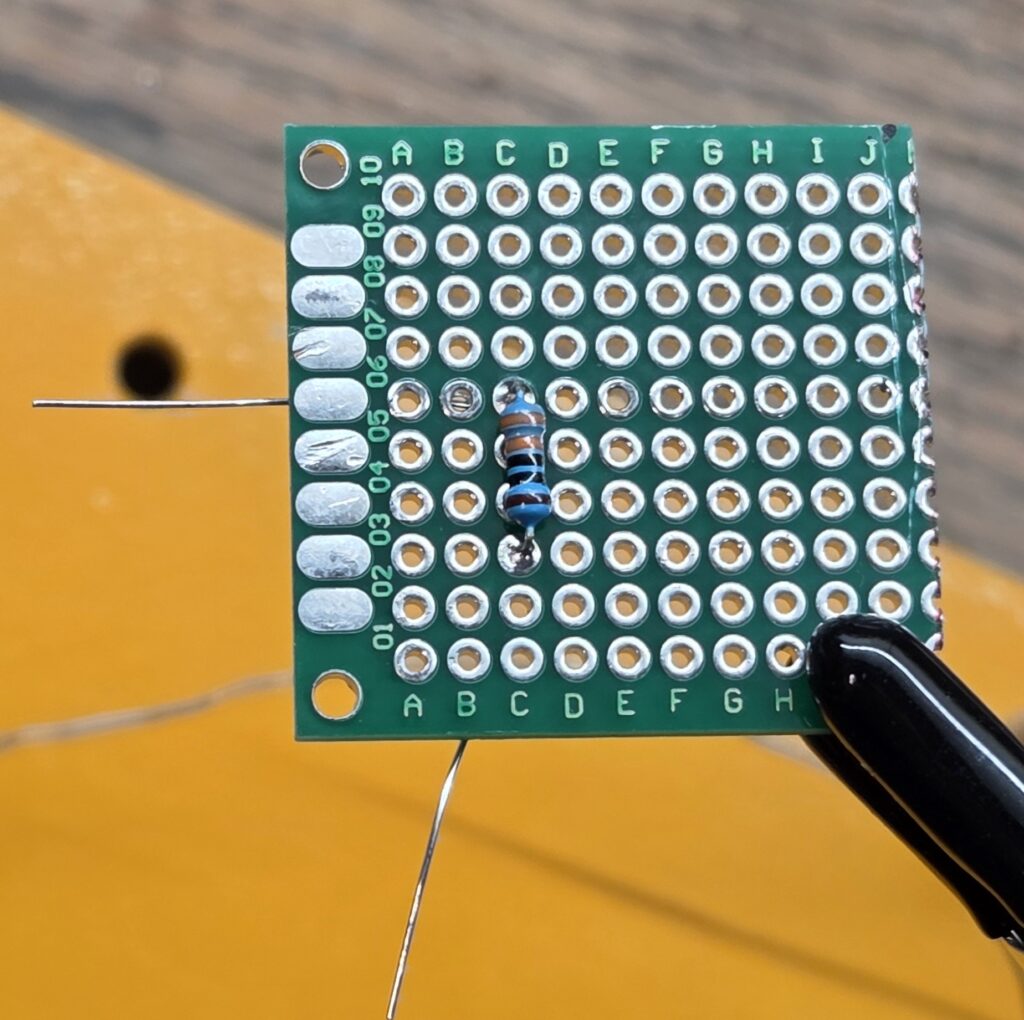
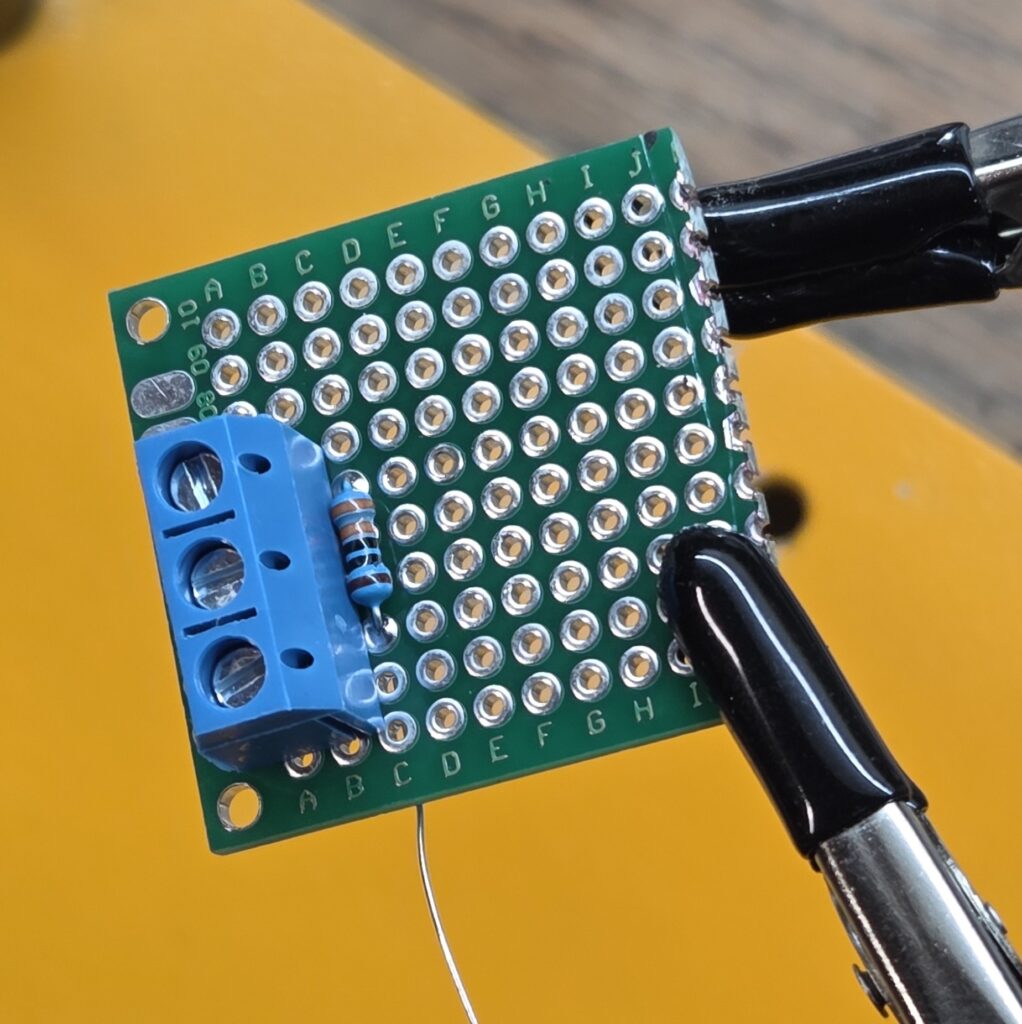
Once satisfied, I pulled everything off and soldered the components one by one. First came the resistor and the 3-pin screw mount terminal.
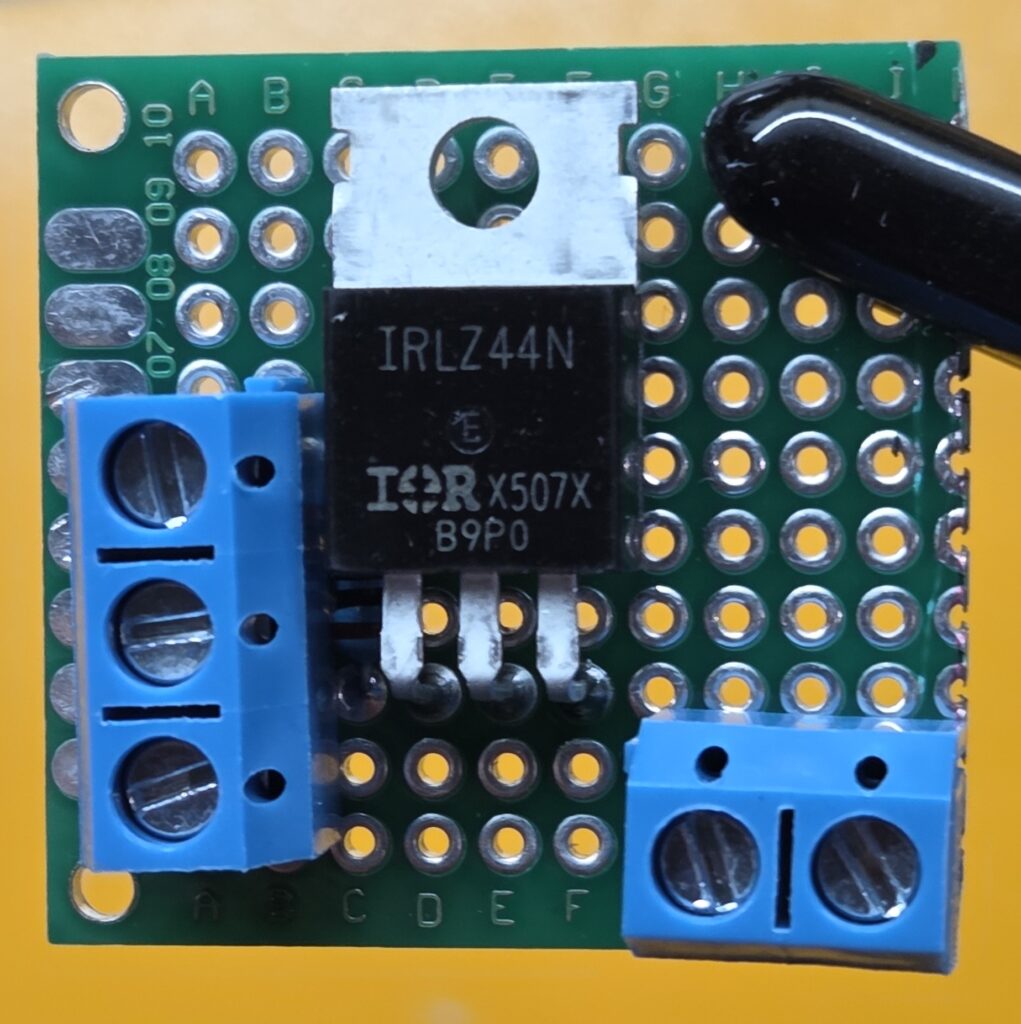
Next I added the transistor and bottom 2-pin screw terminal. And then finally the top 2-pin screw terminal. I reused the resistor legs to bridge the gate connection. They were perfectly positioned, and it saved me from running a tiny jumper wire.
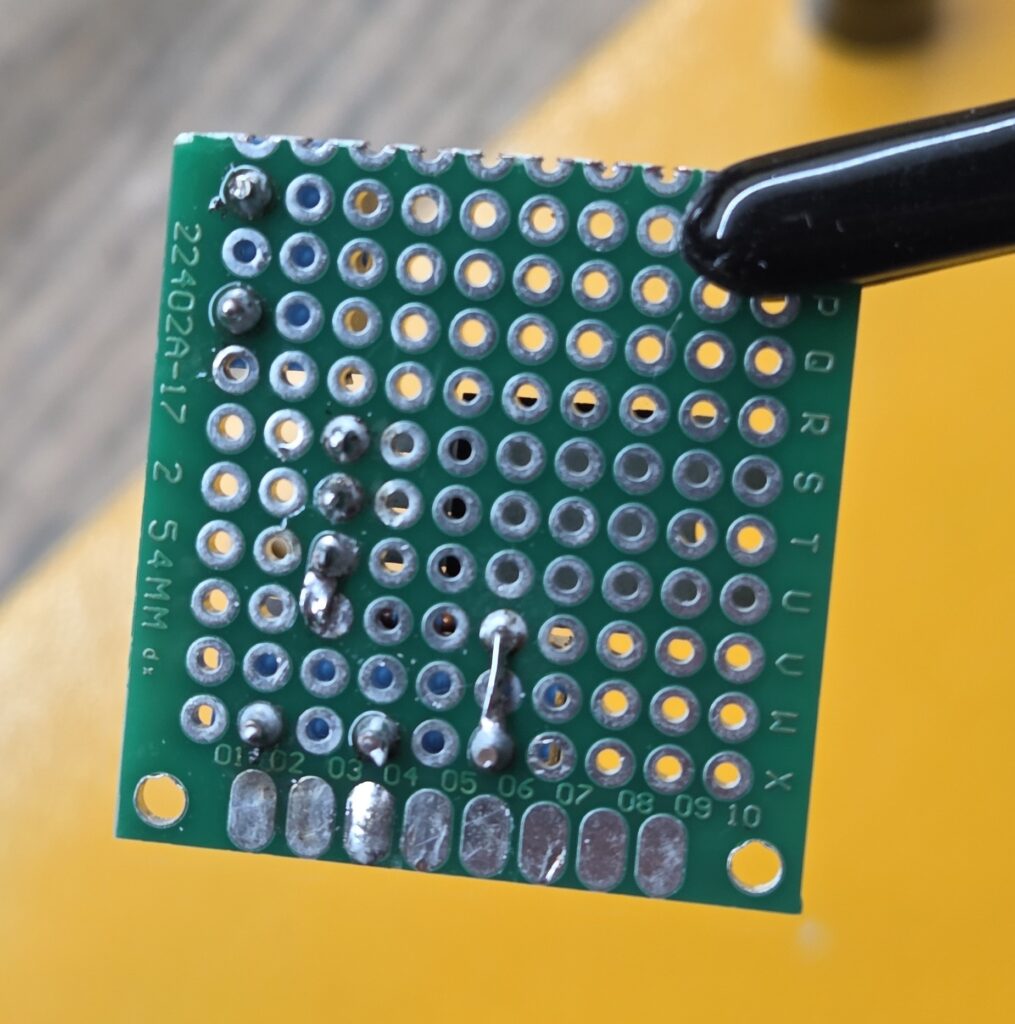
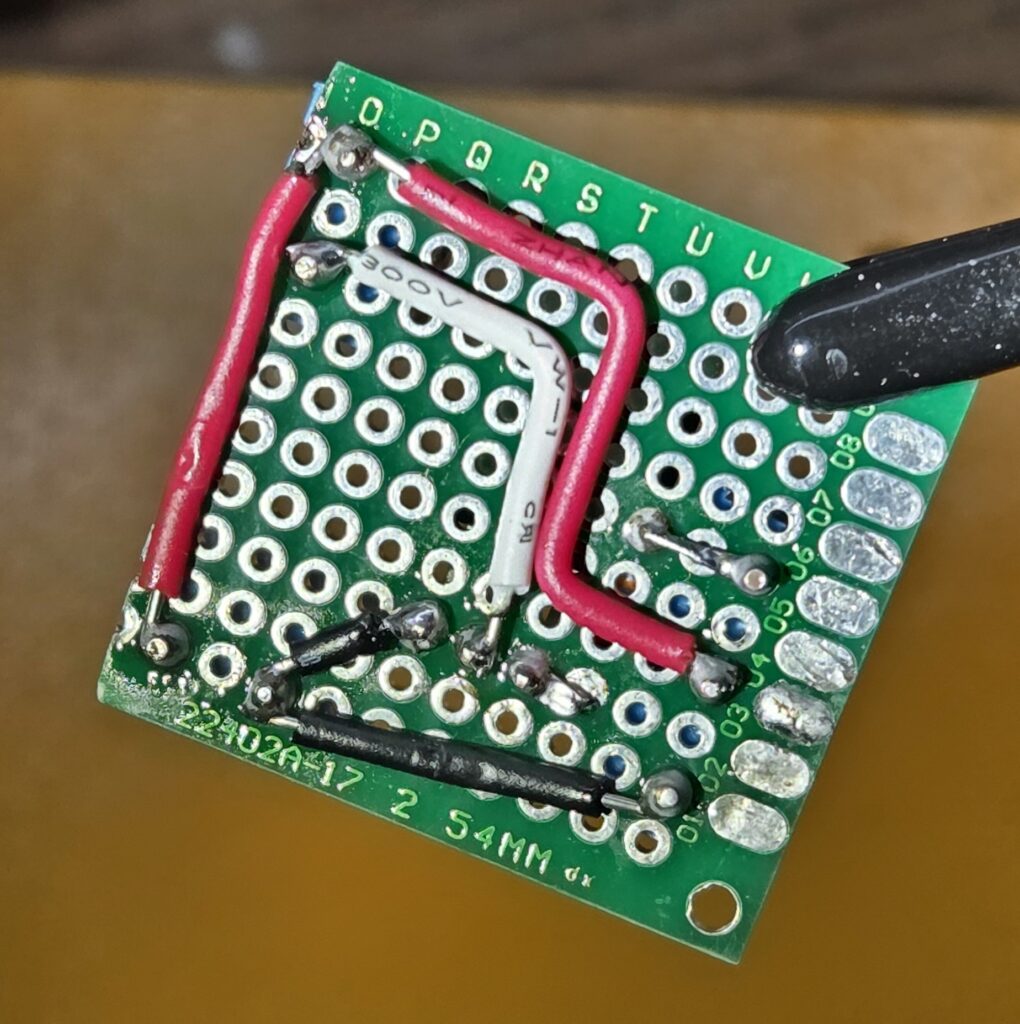
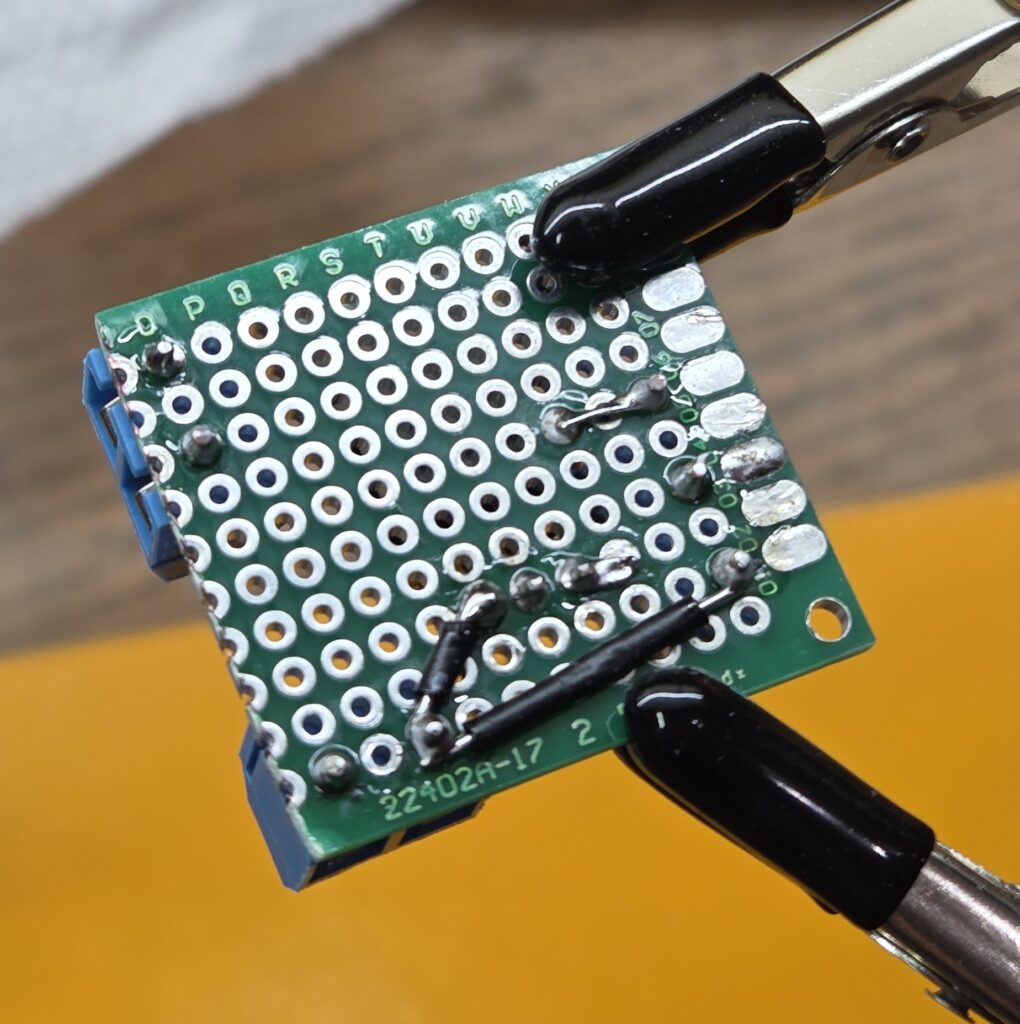
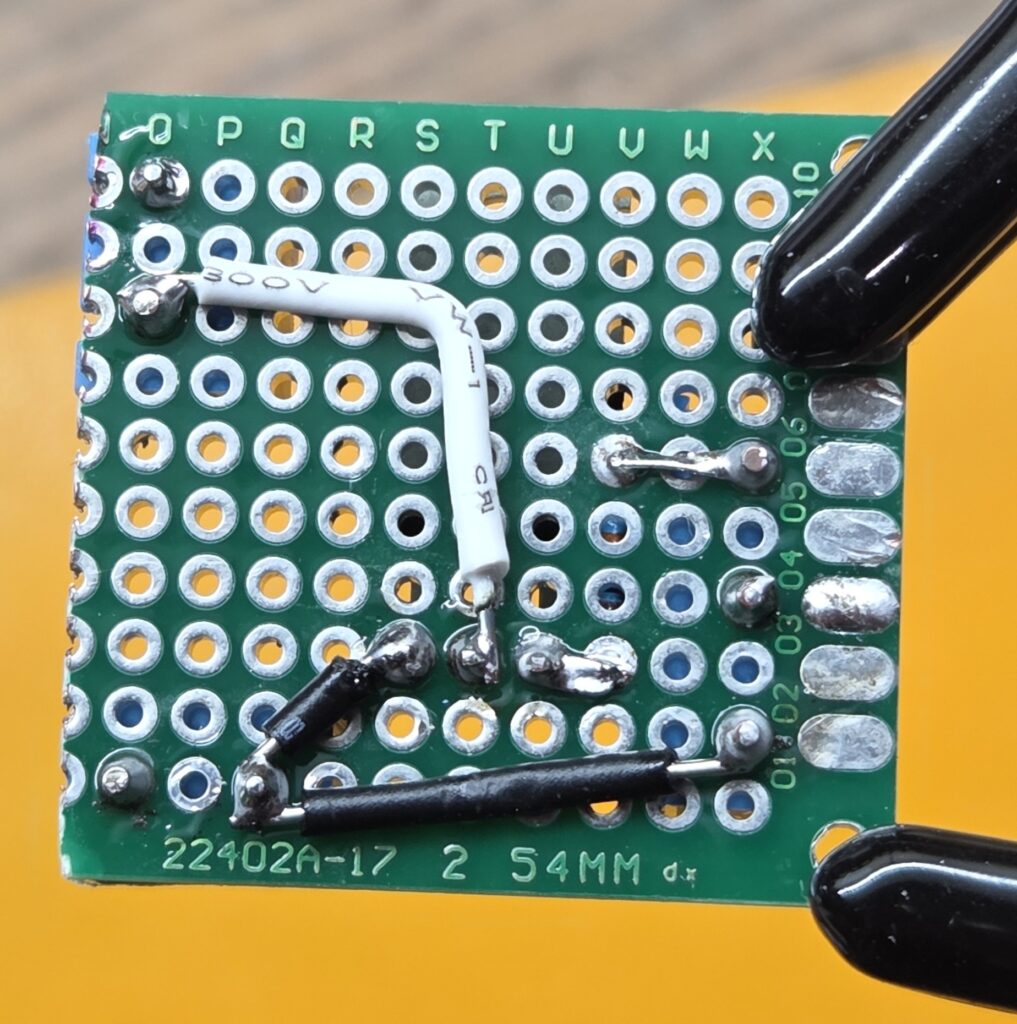
That was the easy part, next came all the connections on the back. First I added the ground cables, then the drain for the transistor and finally the power wires. This part took the longest, but the end result was tidy and solid.
Soldering The ESP8266

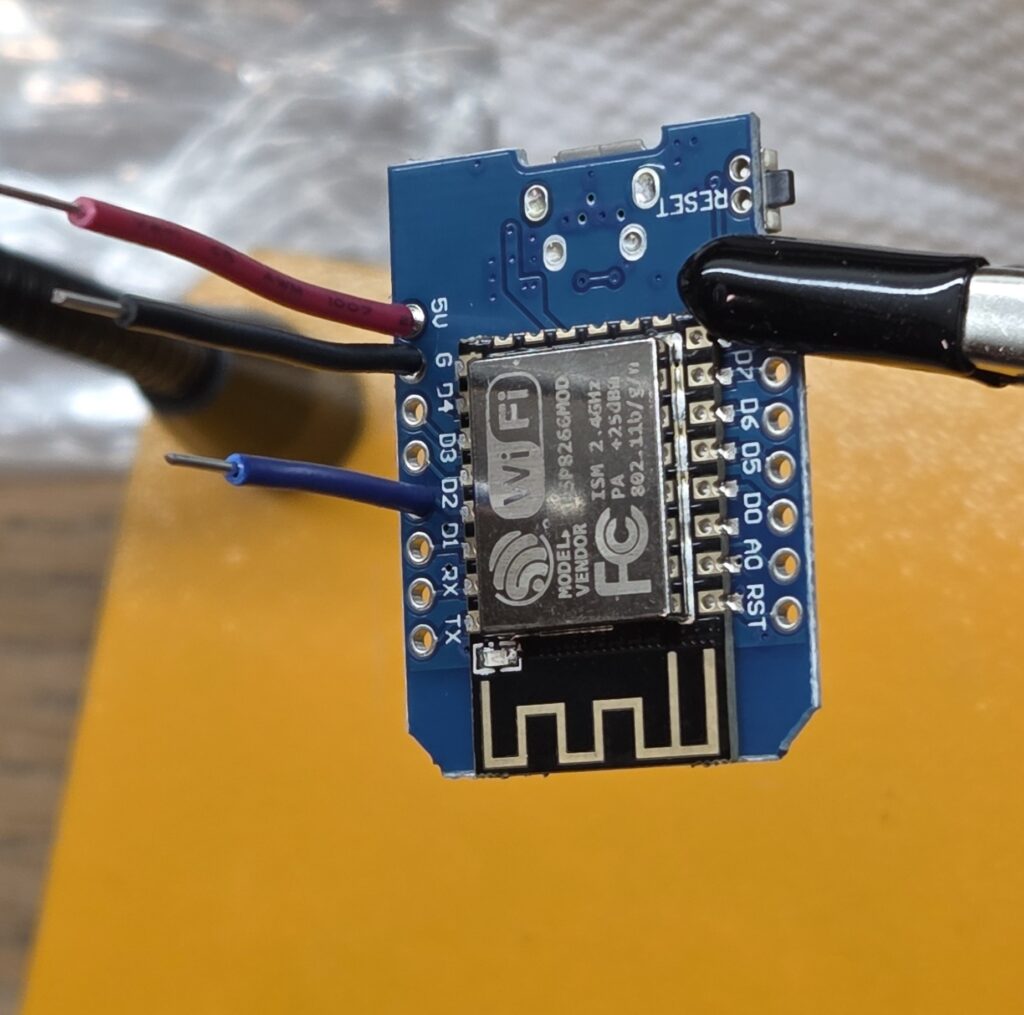
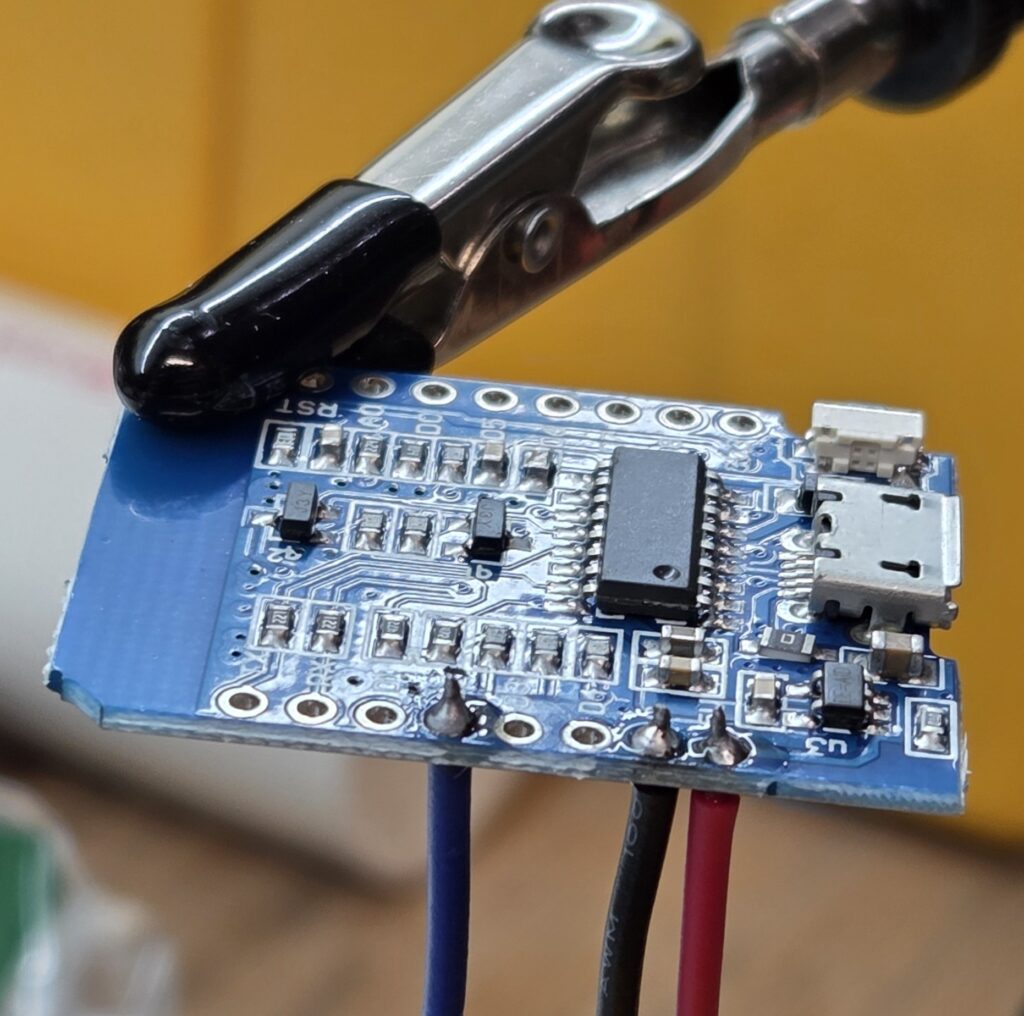
Compared to the proto board, soldering wires to the D1 Mini was trivial. A few quick joints and it was ready.
Testing the Connections

Before committing to installation, I tested everything on the bench. I used alligator clips to connect an LED strip and verified power delivery, MOSFET switching and dimming behavior.
Everything worked as expected. I then soldered leads onto the LED strips themselves and added heat shrink for strain relief.

Creating a Case

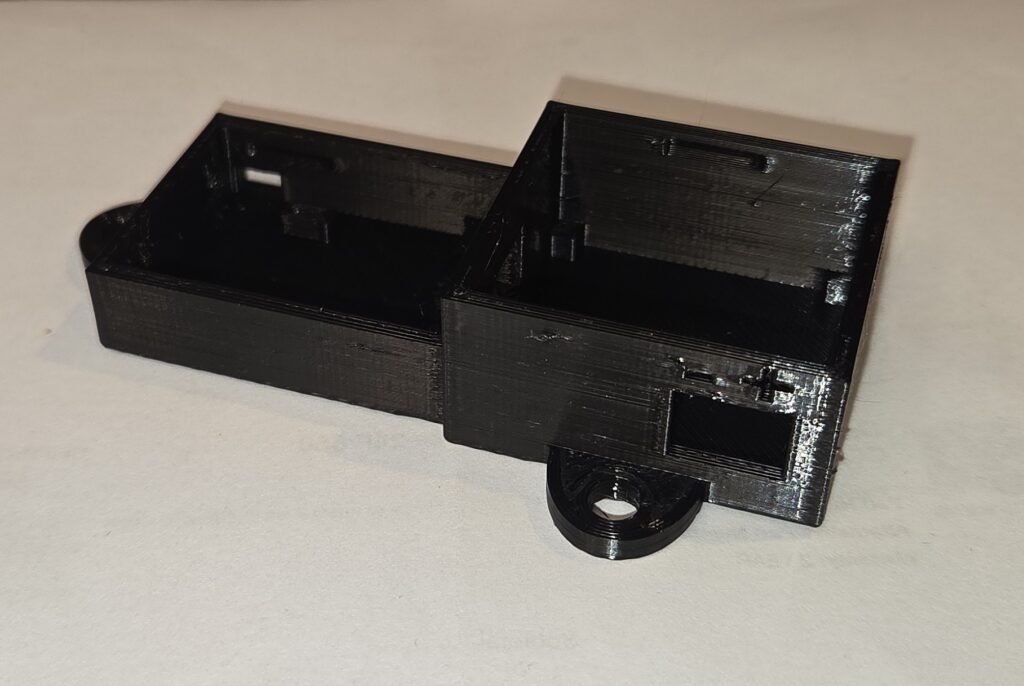
With all the hardware ready, I needed a case to mount this on the back of the shelf. I reused an ESP8266 case design from a previous project and modeled a matching enclosure for the proto board. I then cut out slots for all the connections I needed and added some mounting holes on the side so that I could attach it.

With the model ready, I printed the parts and test fit everything.
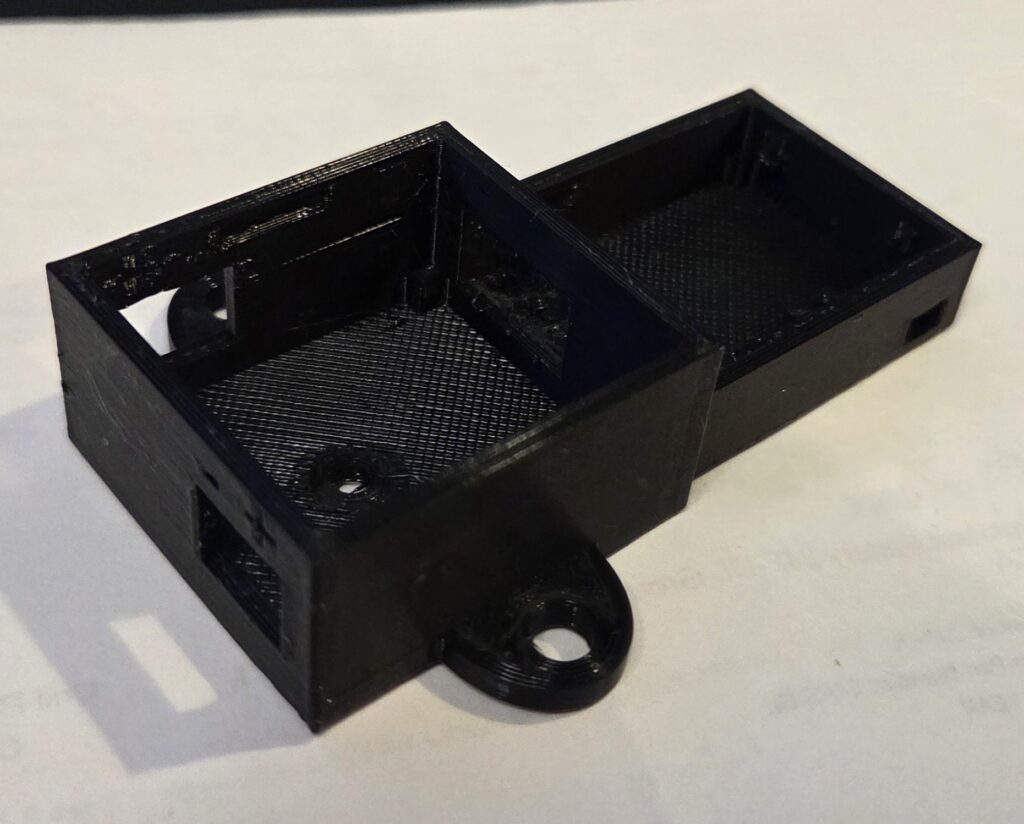
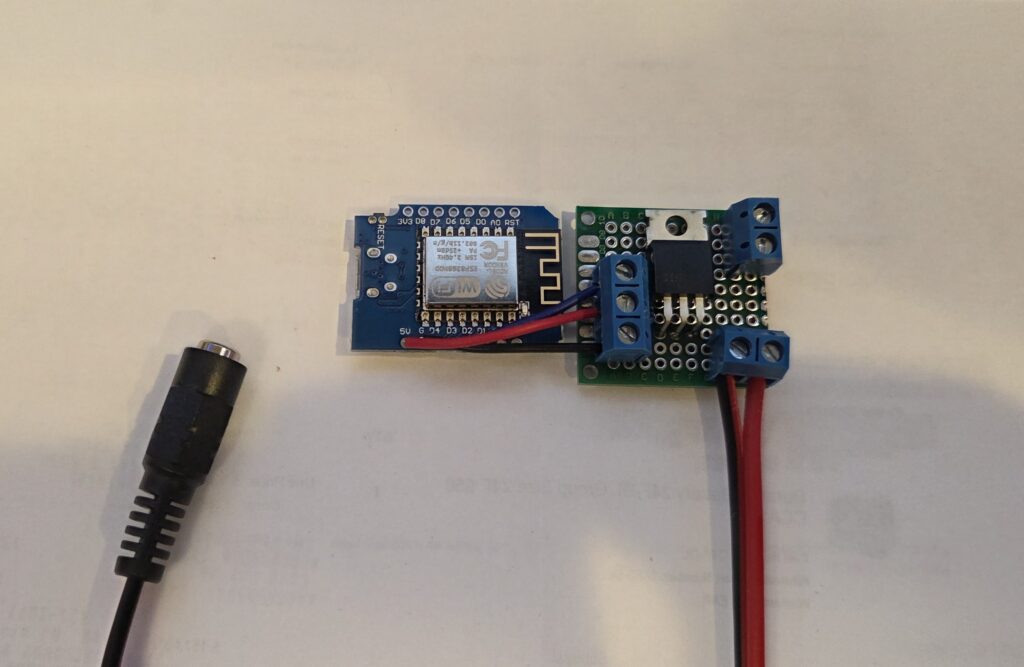
Then I put the ESP8266 and proto board into the case, connected them up, and attached a barrel jack adapter for power.
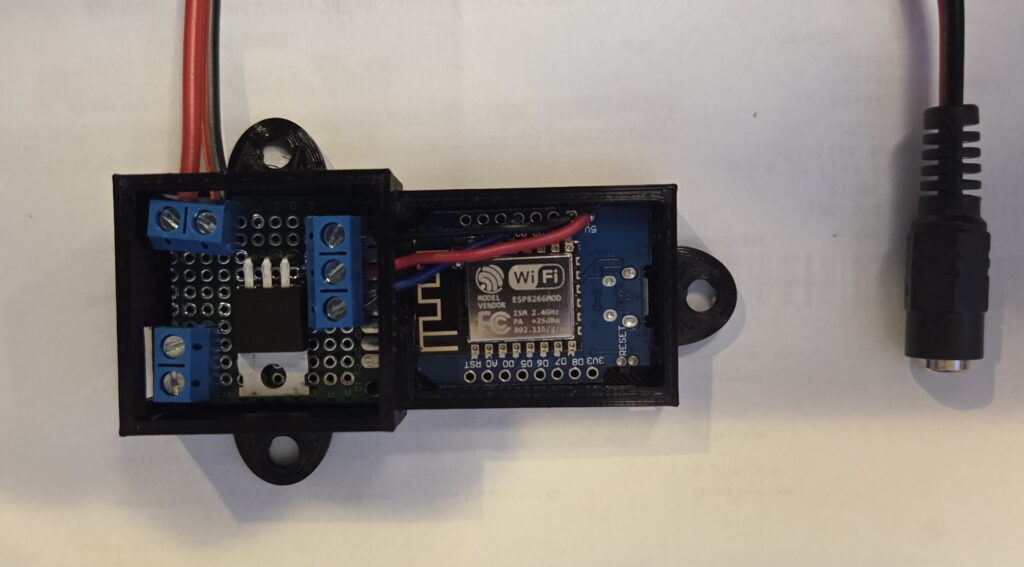
It all fit nicely, so I went ahead and printed some covers for the case
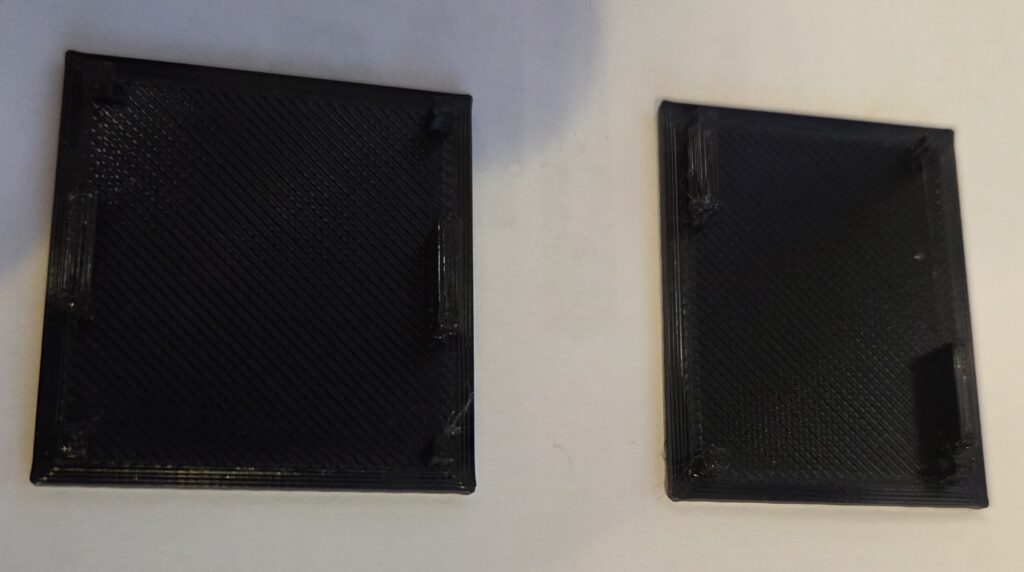
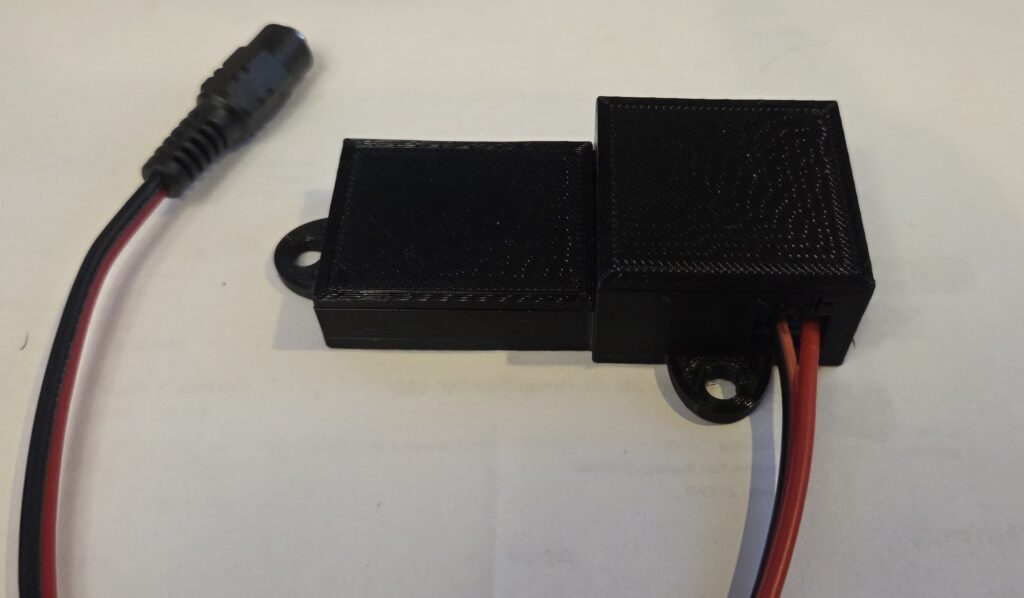
One corner post interfered with a screw terminal, so I trimmed it slightly. Once assembled, the case looked clean and compact.
Final Assembly and Testing

With everything looking good, I wanted to do one more test on the workbench before moving forward with installation. Since I planned to run two LED strips in parallel, I braided two sets of power wires and added JST connectors to the strips and the splitter.
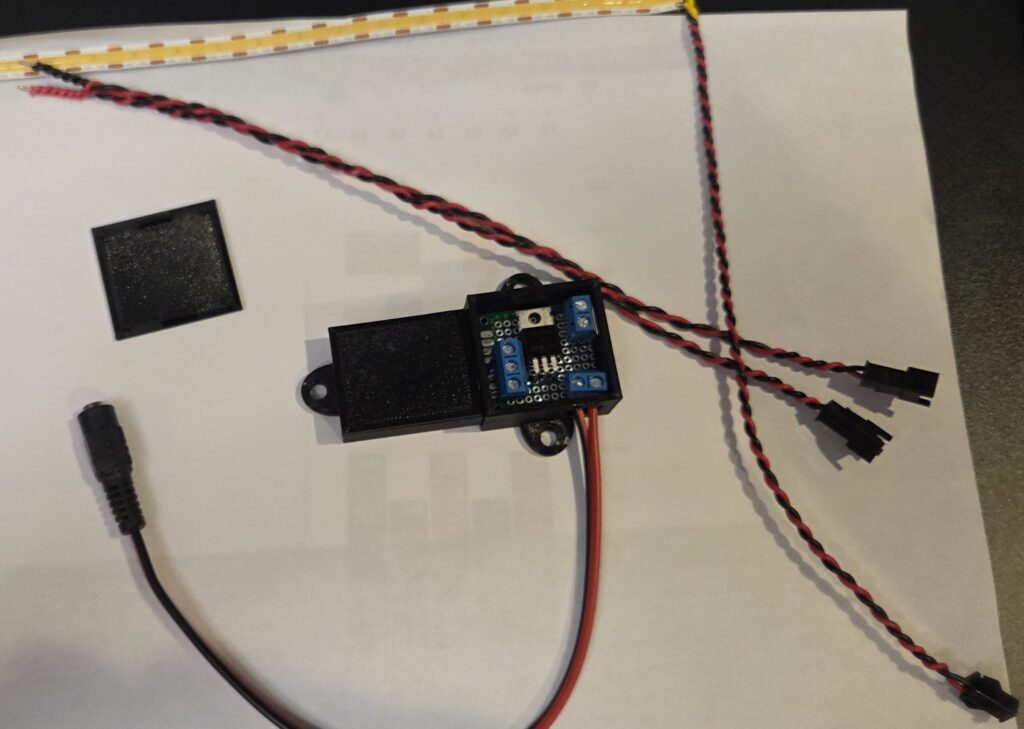
A final bench test confirmed everything worked with both strips connected.

Installation

With everything tested it was time to proceed with the installation. Here’s the shelf before installation.
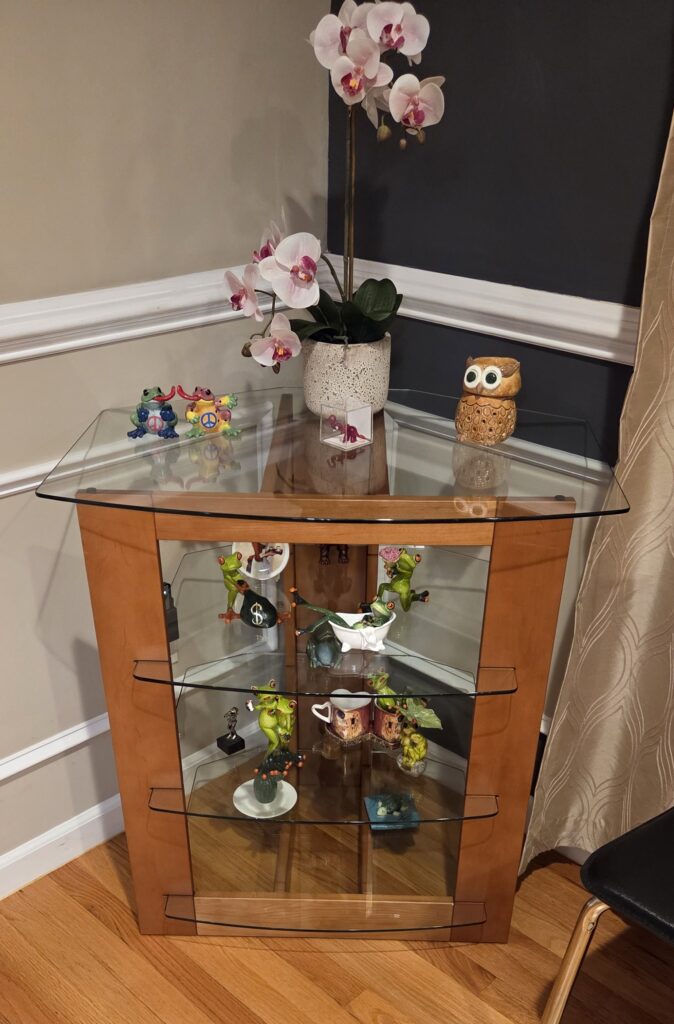
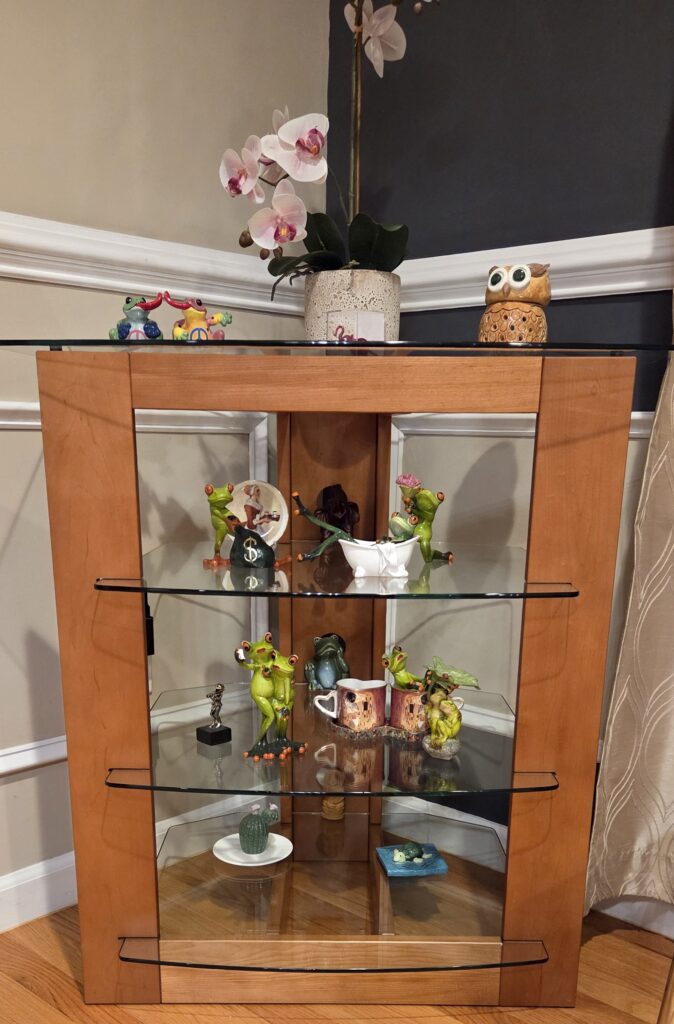
I cleared the shelves, removed the glass, and flipped the frame over to attach the LEDs. I then peeled the backing and attached the two LED strips along the center supports of the shelf. I’m not adding any additional mounting hardware for now, so time will tell how well the sticky backing holds up. I then routed the power cables over the back wall and secured them with some sticky wire clips.
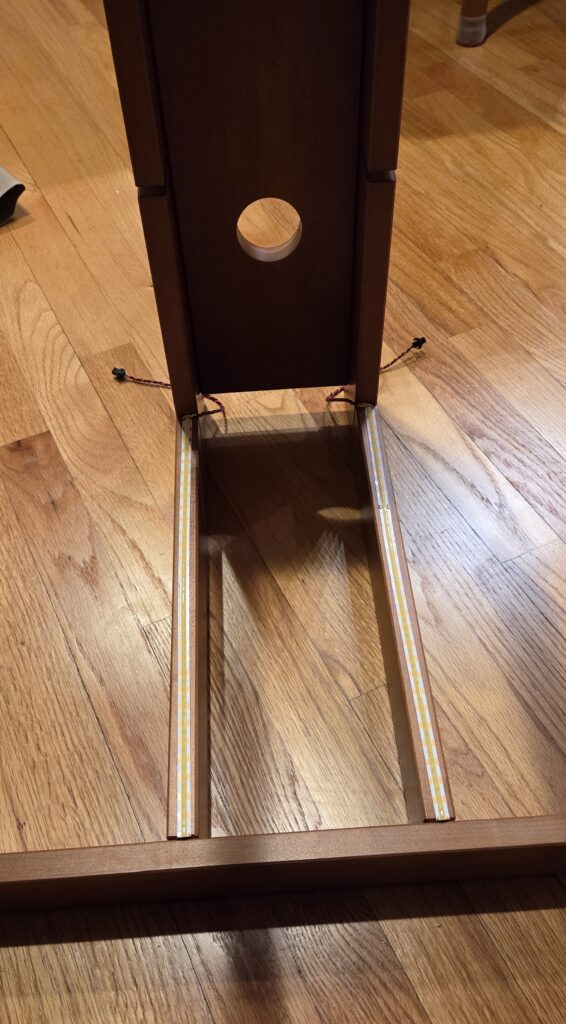
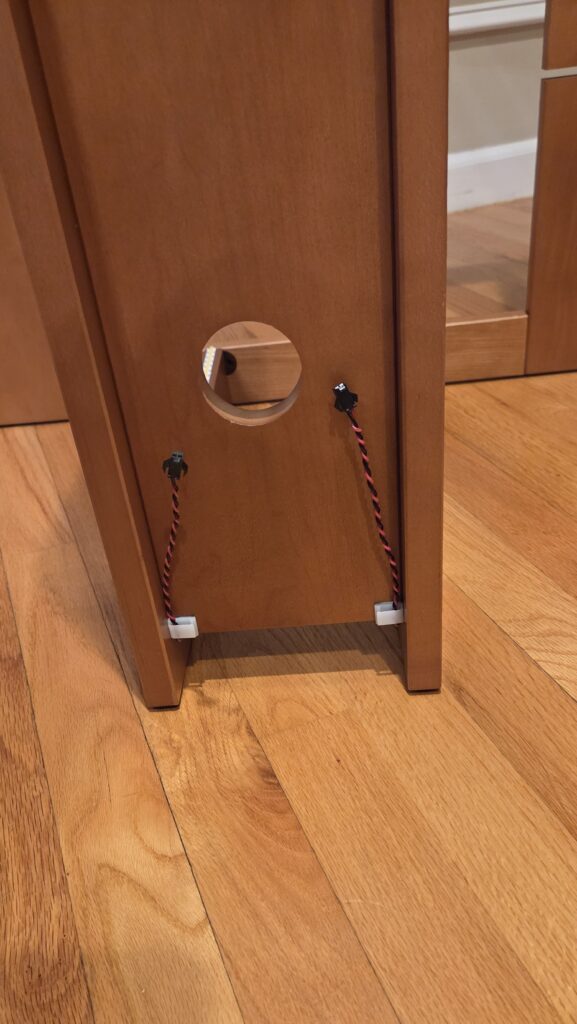
Then I found some screws and attached the case which had the ESP and proto board in it. The splitter I created for the LED strips had a bit of extra wire, which I tucked away (but better to have extra than not enough). I connected together all the wires and secured them with wire clips as well.
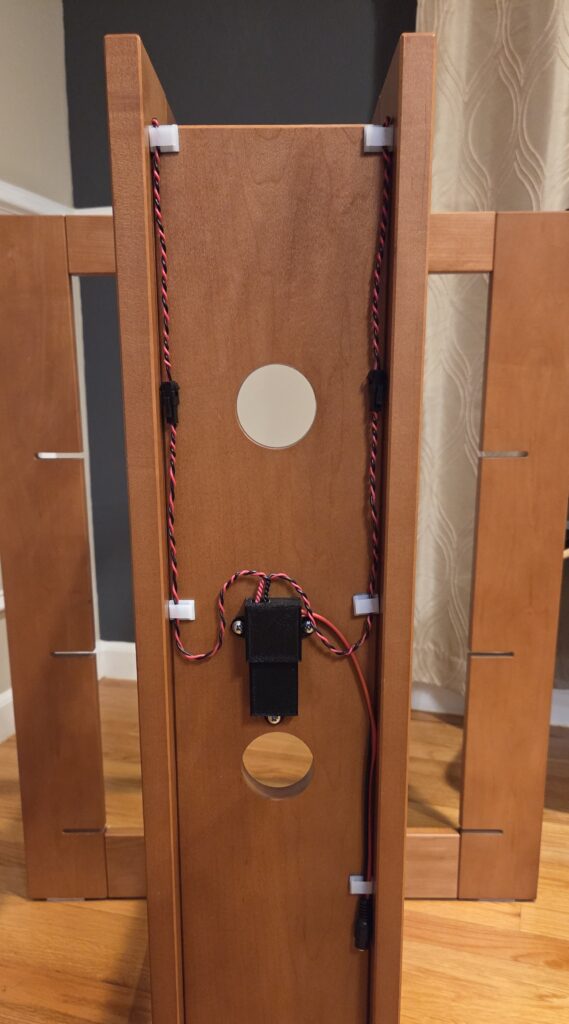
A quick test showed the lighting worked beautifully.

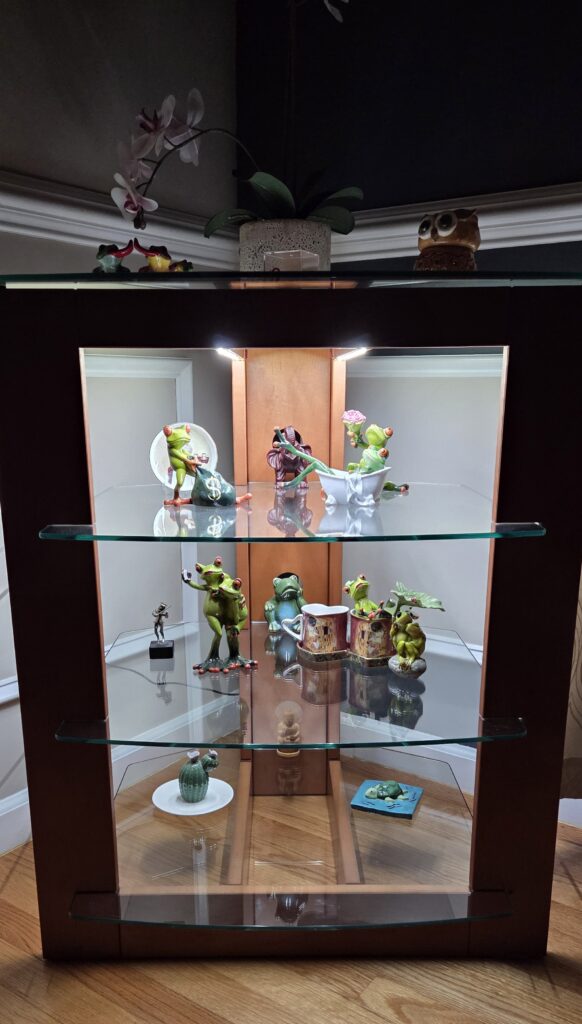
After reinstalling the glass and decorations, the final effect looked great. Here is how it looked (the camera struggled a bit with glare).

Wrap up

The finished project turned out really nicely, and my parents were thrilled with the result. It also leaves room for future Home Assistant automations, like turning the lights on at sunset or when motion is detected.

What I liked most about this build is that it was a practical application of things I’ve done before. Nothing overly complex, but a clean, satisfying project that solved a real need.
Setting up Headscale and an Exit Node

With my new Proxmox box set up, I wanted to configure my own VPN so I could securely access my home network while away and also route my traffic through my home internet connection. This would let me benefit from my AdGuard setup, maintain a consistent “home” location, and have a fully private connection anywhere.

After some research, I landed on WireGuard, and then on Tailscale, which builds on WireGuard with automatic key management and device coordination. Even better, I learned that I could self‑host the control server using Headscale, giving me a completely independent, private VPN mesh.

Installing Headscale

Running the Install Script

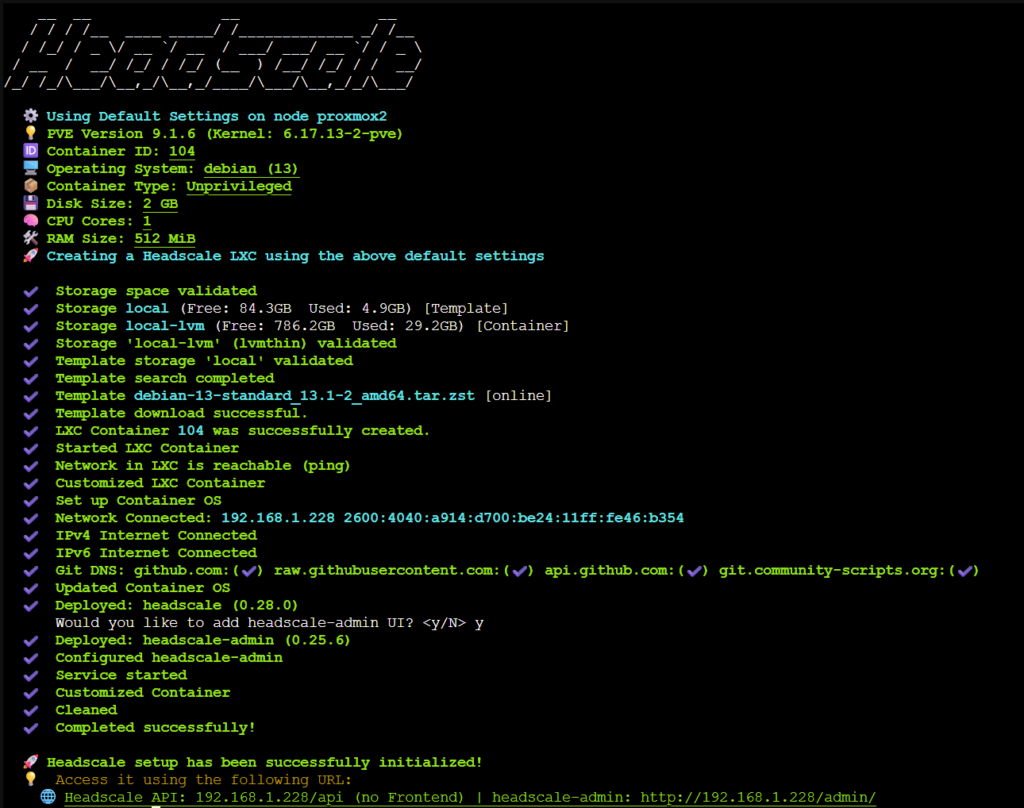
The initial setup was straightforward thanks to the script available on community-scripts.org. I selected the root node, opened a shell and ran the “Headscale” script.

  • Enable Diagnostics → No, Opt out
  • Install type → Default
  • Storage pool for container template → Local
  • Storage pool for container → local-lvm
  • Add headscale-admin ui → Yes

The script created the LXC container, downloaded the Debian template, installed Headscale and the admin UI, and confirmed network connectivity.

Once complete, it provided URLs for the API and admin interface. I opened the admin UI to confirm it was running, then created a DHCP reservation so the container would always get the same IP.

Editing the Config File

With the container running, the next step was configuring Headscale itself. The script places the config at:

/etc/headscale/config.yaml

I opened a shell on the Headscale container, installed vim, and edited the file:

apt install vim
vim /etc/headscale/config.yaml

The only change I made was updating:

server_url: https://private.rirak.com

This will be the public entry point for my VPN.

DNS & Reverse Proxy Setup

With the server URL set, I needed DNS and SSL in place so clients could reach Headscale securely.

Creating DNS Records

In Cloudflare, I added an A record:

  • Name: private
  • Target: internal IP of the Headscale container
  • Proxy: DNS only

Creating the Initial SSL Certificate (DNS Challenge)

I use Nginx Proxy Manager for reverse proxying and SSL certificates.

Because this was a new domain with no existing certificate, I used the DNS challenge for the initial issuance. The DNS challenge works even before the proxy is serving traffic, which makes it ideal for initial certificate creation. This required creating a Cloudflare API token with:

DNS → Edit
Zone → Read
Zone DNS Settings → Read

In Cloudflare, Manage Account → Account API Tokens → Create Token. Then create a token with these permissions:

Then click next to review and then create the token. Upon creation, the website gives us the key which will be used for auth in the next step.

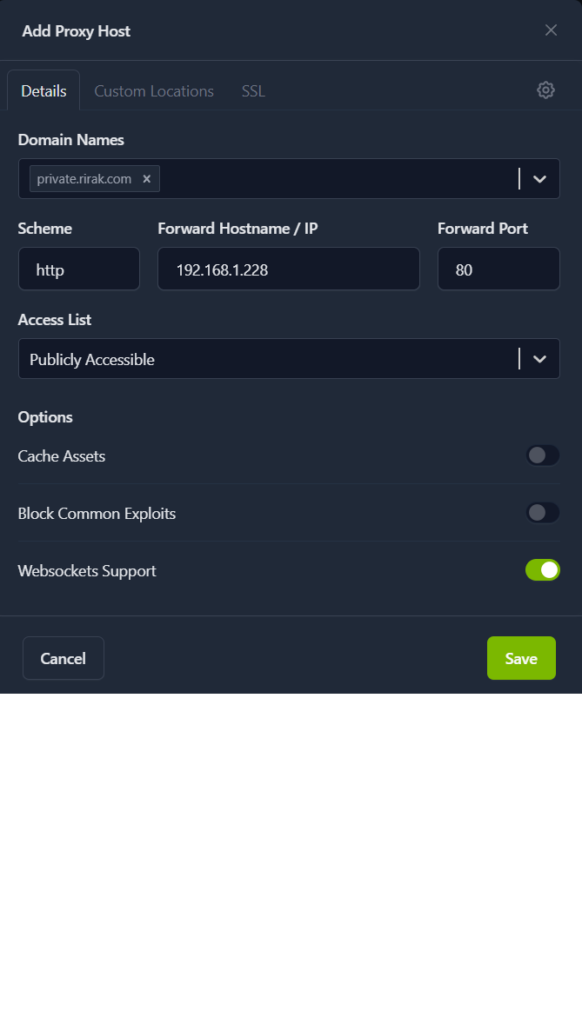
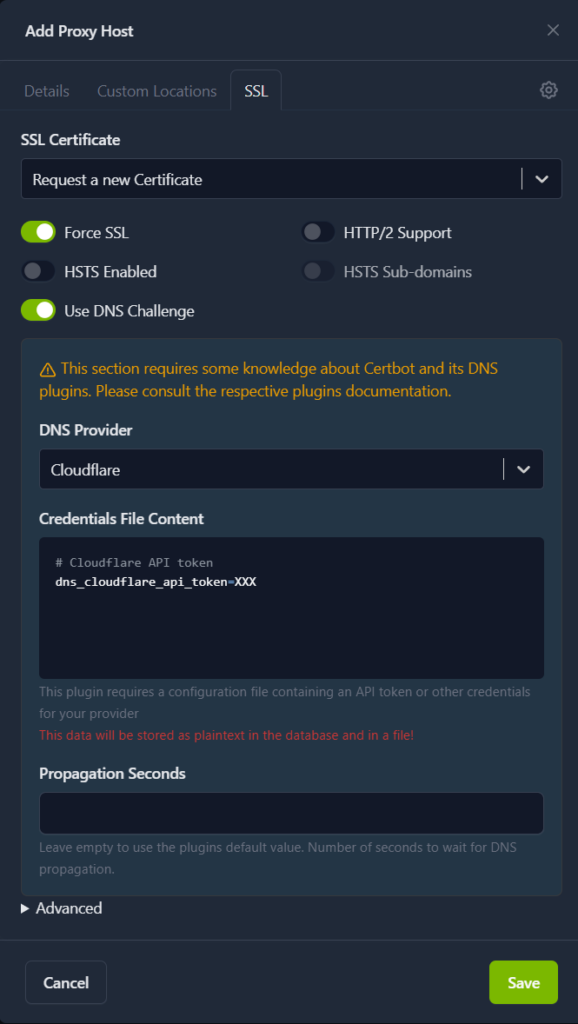
Next it was time to jump to Nginx Proxy Manager. I clicked “Add Proxy Host” and filled out the form.

  • Domain Name: private.rirak.com
  • Scheme: http
  • Forward Hostname / IP: Headscale container IP
  • Forward Port: 80
  • Websocket Support: Enabled

Then under the SSL Tab

  • SSL Certificate: Request New Certificate
  • Force SSL: Enabled
  • Use DNS Challenge: Enabled
  • DNS Provider: Cloudflare
  • Credentials File Content: dns_cloudflare_api_token=XXX

After saving, NPM generated the certificate and the UI showed that the certificate was active.

Switching to HTTP Challenge

Once the certificate existed, I deleted the proxy entry and recreated it — this time without the DNS challenge. Now it can renew via the HTTP challenge.

I also deleted the old certificate under the certificates tab and went back to Cloudflare to remove the API token.

With that configured, I rebooted Headscale to make sure it would work with the new configuration. Headscale produces a windows help page for configuring connections so this is a good way to check its running successfully. I tried to visit https://private.rirak.com/windows and the help page came up confirming the configuration was working correctly.

Setting Up the Headscale Admin UI

With Headscale configured, I wanted to try out the Admin UI. The admin UI is available at:

http://<LXC-IP>/admin/

Accessing it through the external domain returned a 403 (likely intentional), but the internal IP worked fine. To get the UI authenticated, I needed to create an API key. So back in the Headscale node shell I ran

headscale apikey create

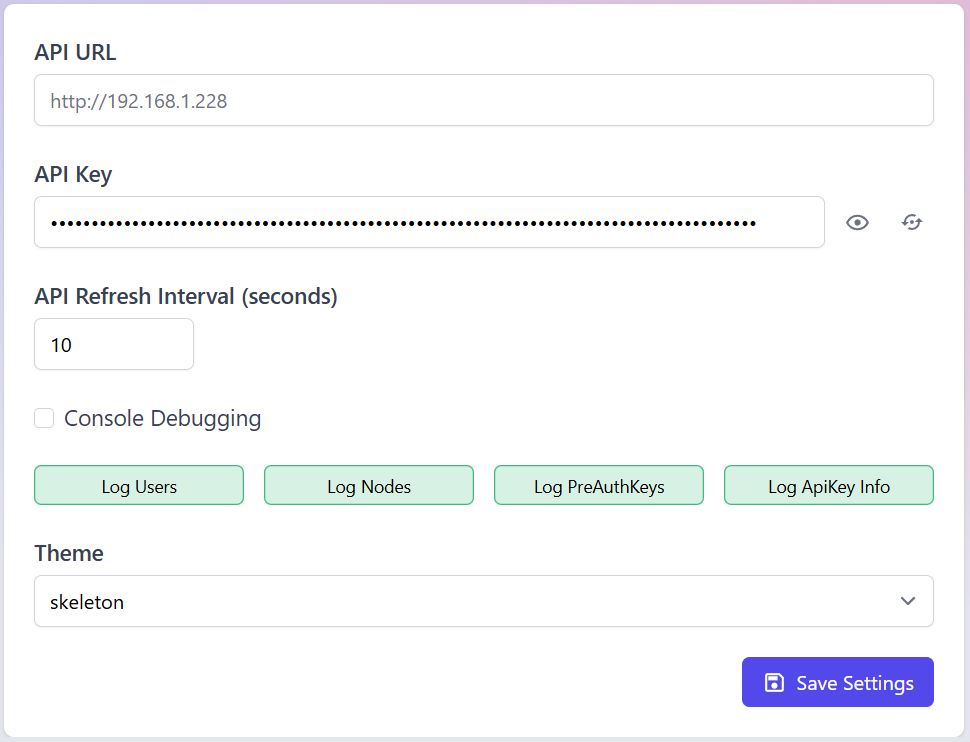
This returned an api key which I copied and saved for use in the UI. The UI opened up to a settings page which asked for the api key. Optionally I could overwrite the api url but it was already set to the correct IP.

I saved the settings and then refreshed the page. The full sidebar now populated confirming that the authentication worked.

Creating a User

Next I needed to set up a user for myself, so that I could move on to configuring devices. There are two ways to do this.

  • Via UI
    • Navigate to the “Users” tab
    • Click create
    • Enter Name
    • Click the checkmark to create
  • Via CLI
    • headscale users create alex

Device Setup (Android)

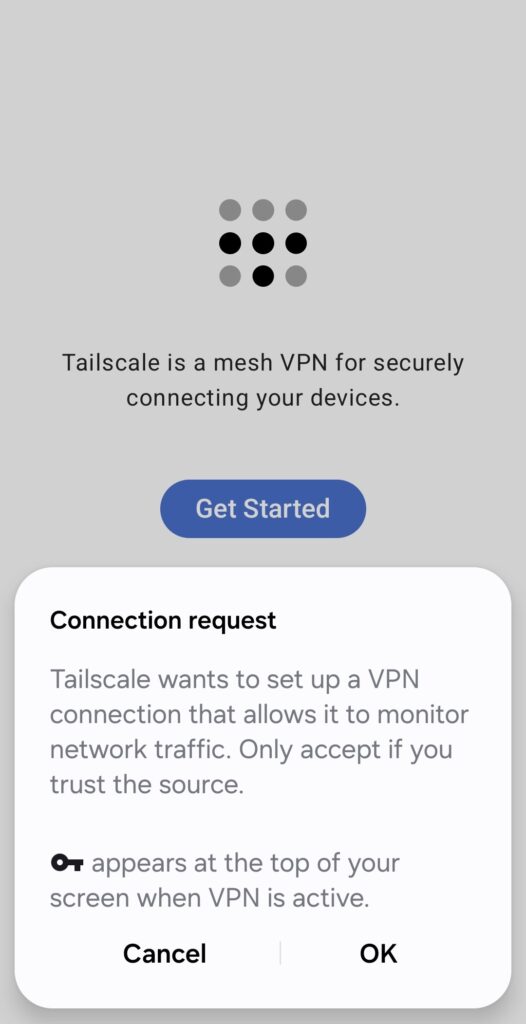
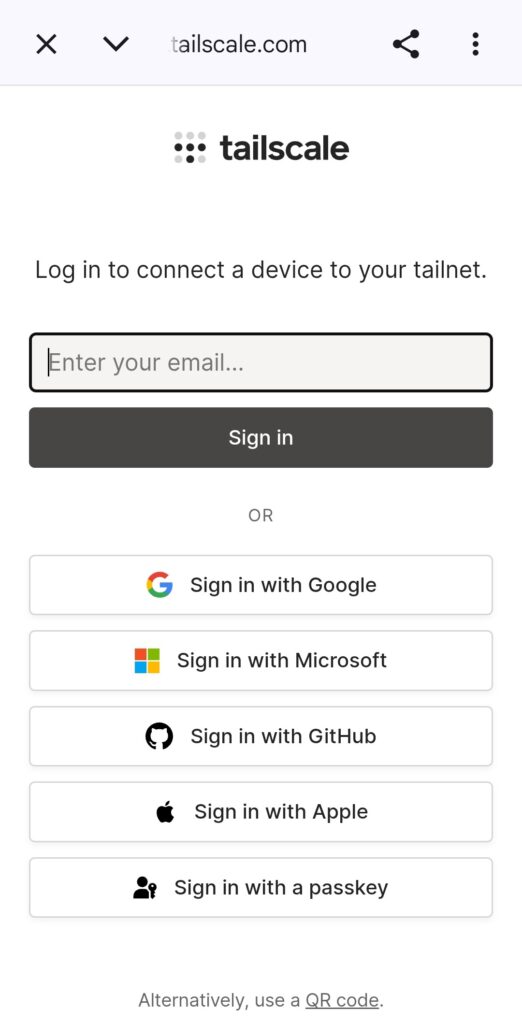
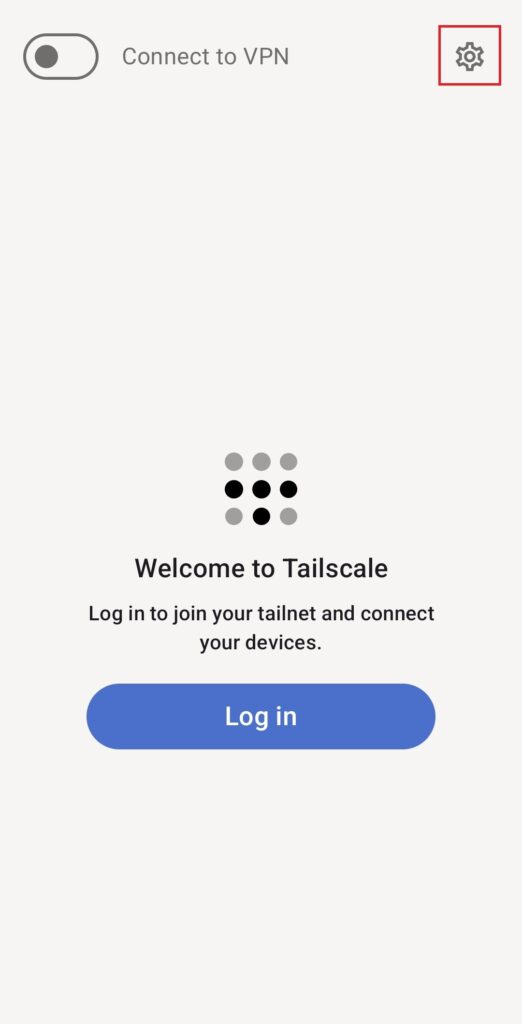
With the server ready, it was time to connect my first device. First, I downloaded the Tailscale app from the App store. When you first open the app up, it requests permissions to set up a VPN connection, I accepted. Next I was brought to a login screen, but I want to use my own control server rather than the normal Tailscale control server, so I exited out of the login page. I then tapped the cog in the top right corner to enter the settings page.

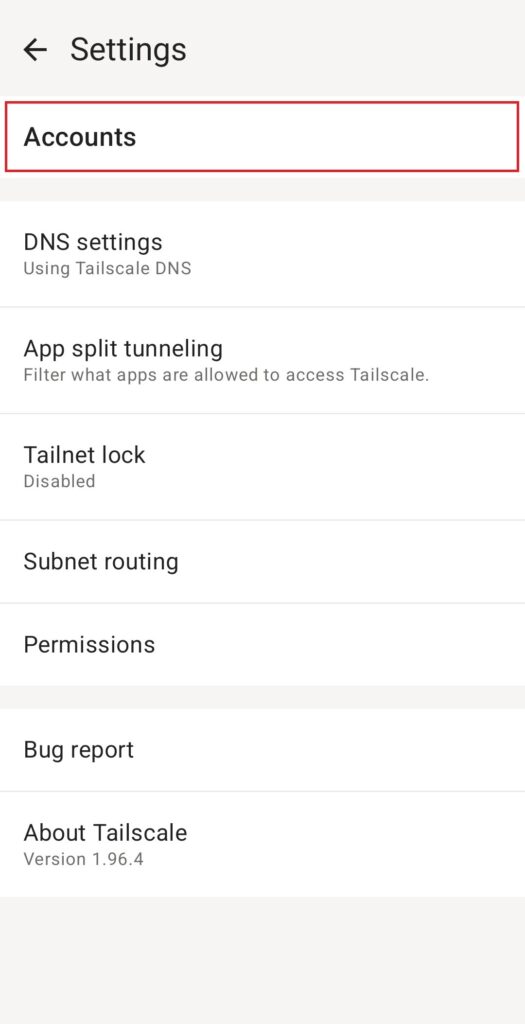
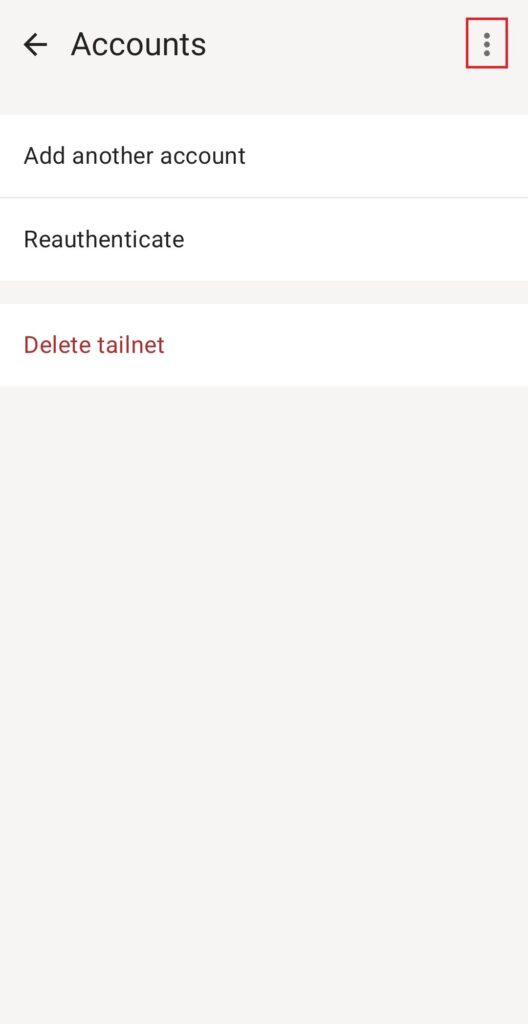
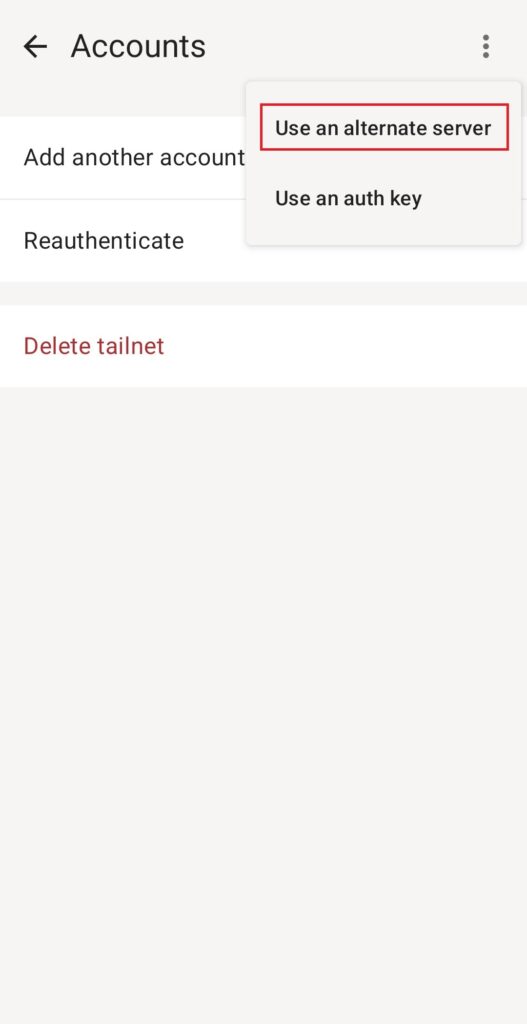
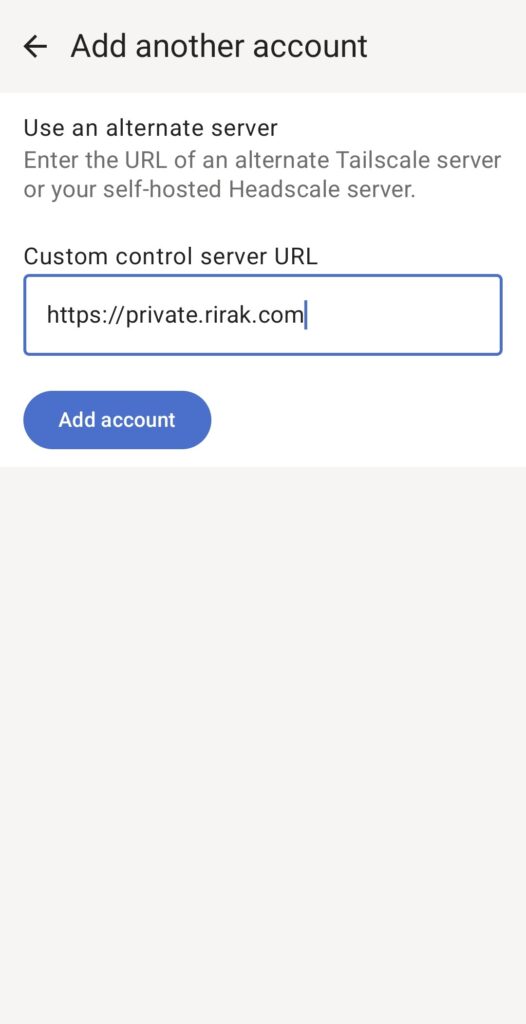
Then I selected “Accounts”, clicked the 3 dots in the top right corner, and selected “Use an alternate server”

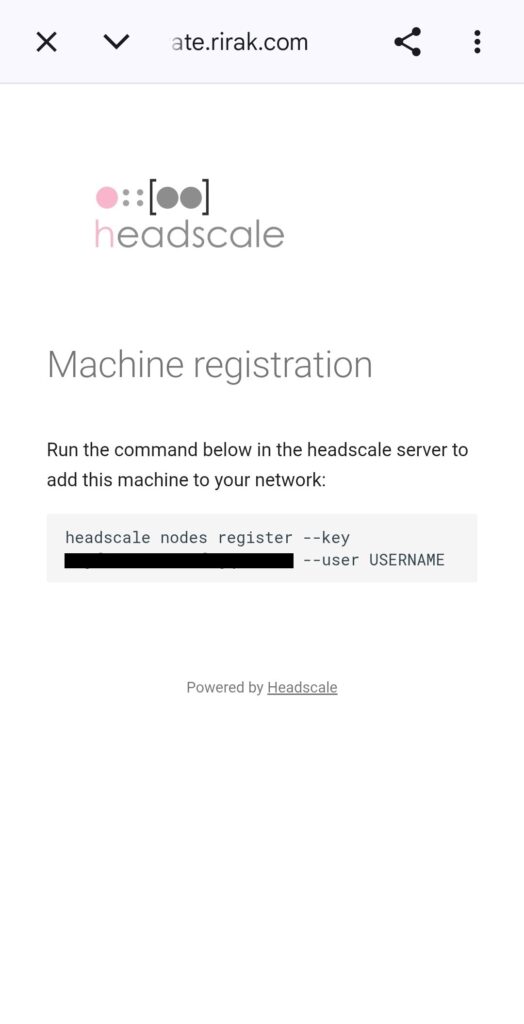
On the screen which came up, I entered the URL of my Headscale server. Upon clicking “Add Account” I was redirected to the “Machine Registration Page” which provided a registration command. This is where an Admin needs to register this device.

I took the registration command it gave me, and jumped over to the shell on the Tailscale node. I updated the user, and ran the registration command.

headscale nodes register --key <KEY> --user alex

It auto assigned my device the random hostname of “invalid-dfborob5”. Apparently this is a common issue with Android devices on Tailscale. I decided to rename it. First I listed the devices, then I ran a rename command (where identifier is the id of the node).

headscale nodes list
headscale nodes rename alex-s25 --identifier 1

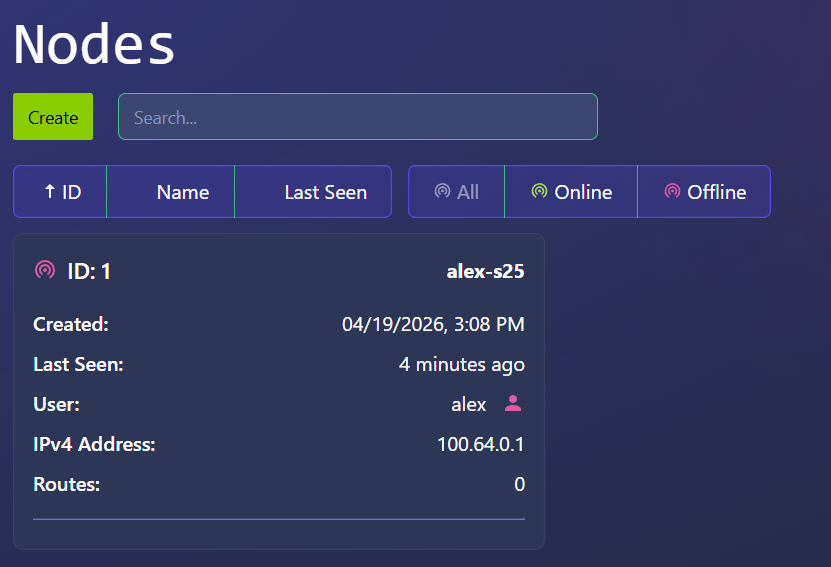
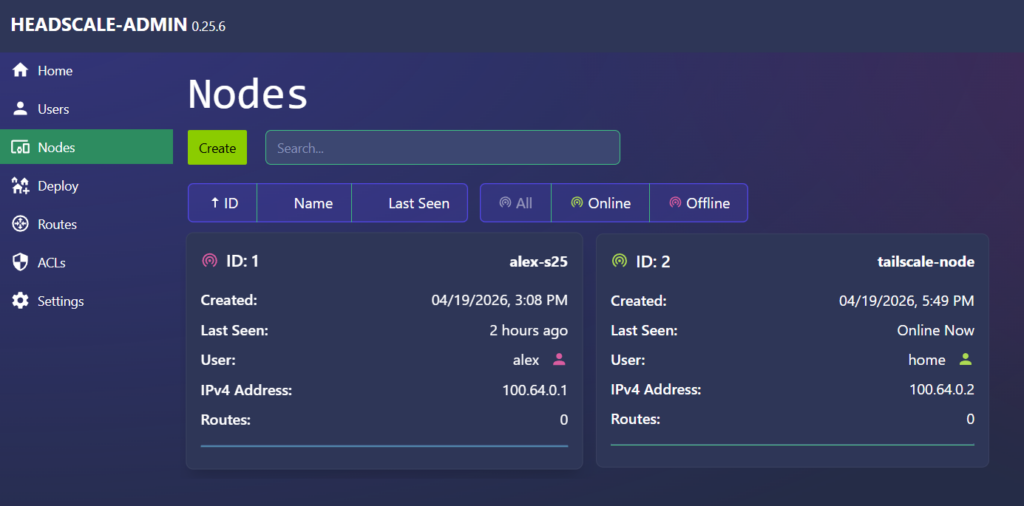
With that complete, I checked the Admin UI, and confirmed that I was able to see my new device node there.

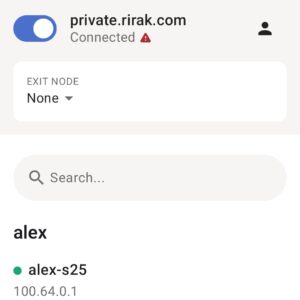
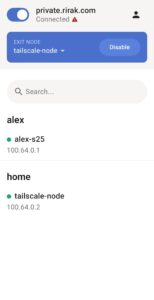
Back on the phone, I was asked for notification permission, and then it showed the main screen confirming I was connected.

Device Setup (Debian & Exit Node)

With my phone connected to the VPN, the next step was setting up an exit node so the phone could route all its traffic through my home network. For this, I used a Debian LXC container running the Tailscale client. I chose an LXC container instead of a full VM because it’s lightweight and more than sufficient for running Tailscale. This part was more involved, since I had to configure the container itself before installing Tailscale.

Downloading the Debian Template

I decided to use Debian 12 because it’s well‑documented, stable, and works cleanly with Tailscale. Proxmox has an official template repository, so downloading it was easy:

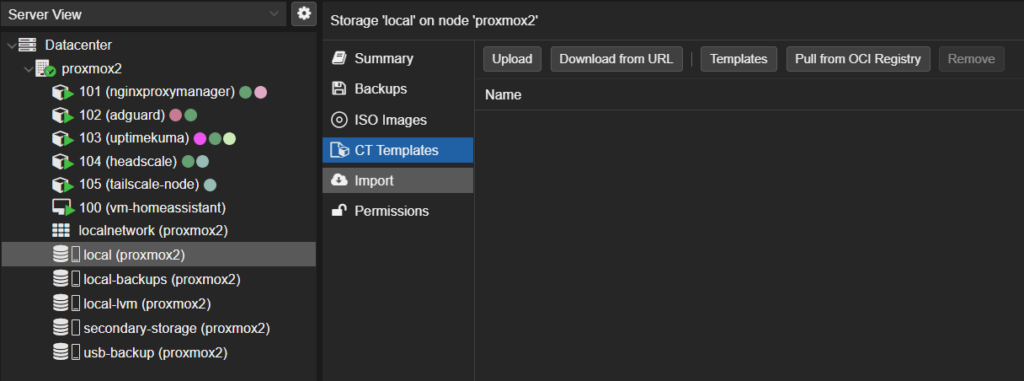
  • Under the root node, in the storage section, select “Local” and then in that window “CT Templates”
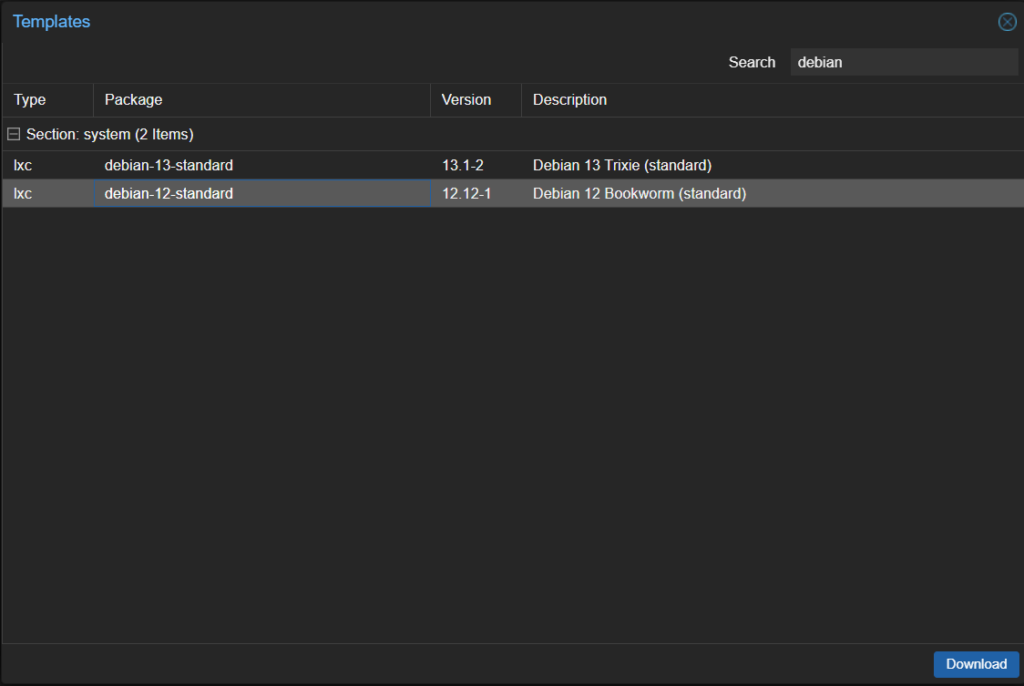
  • Click “Templates”
  • Search for “Debian 12”
  • Select it and click “Download”

Creating the LXC Container

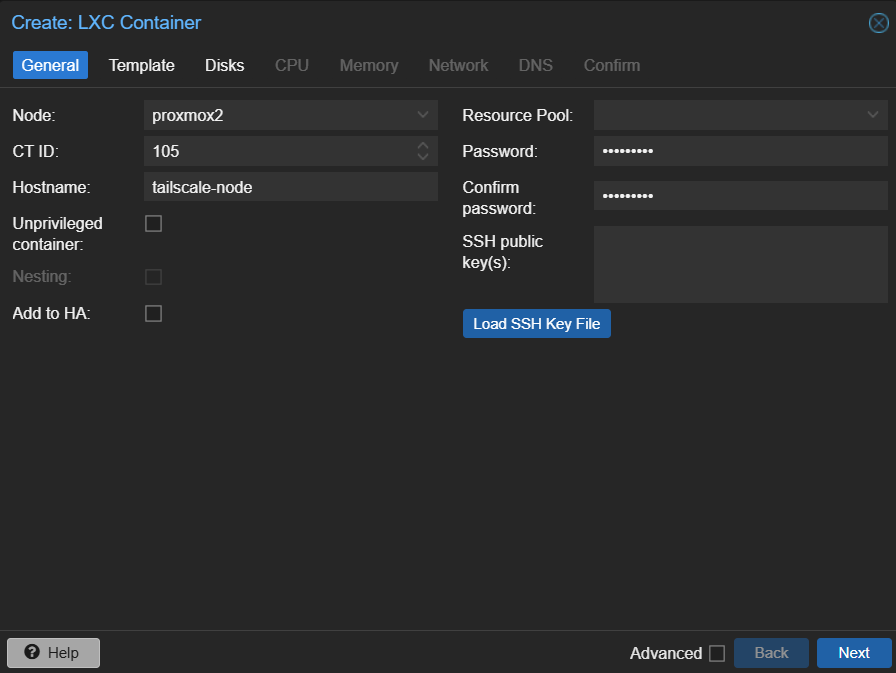
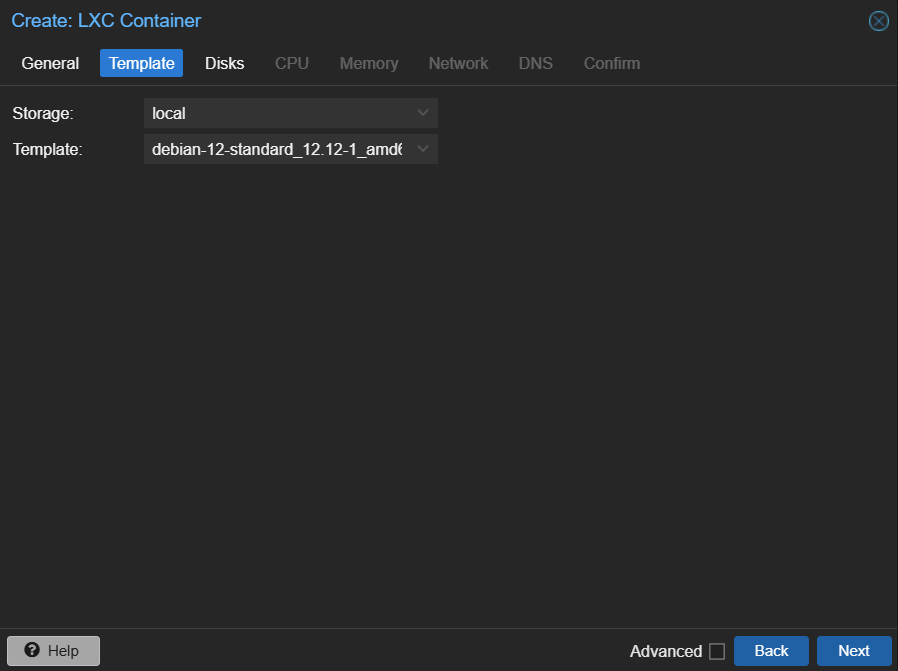
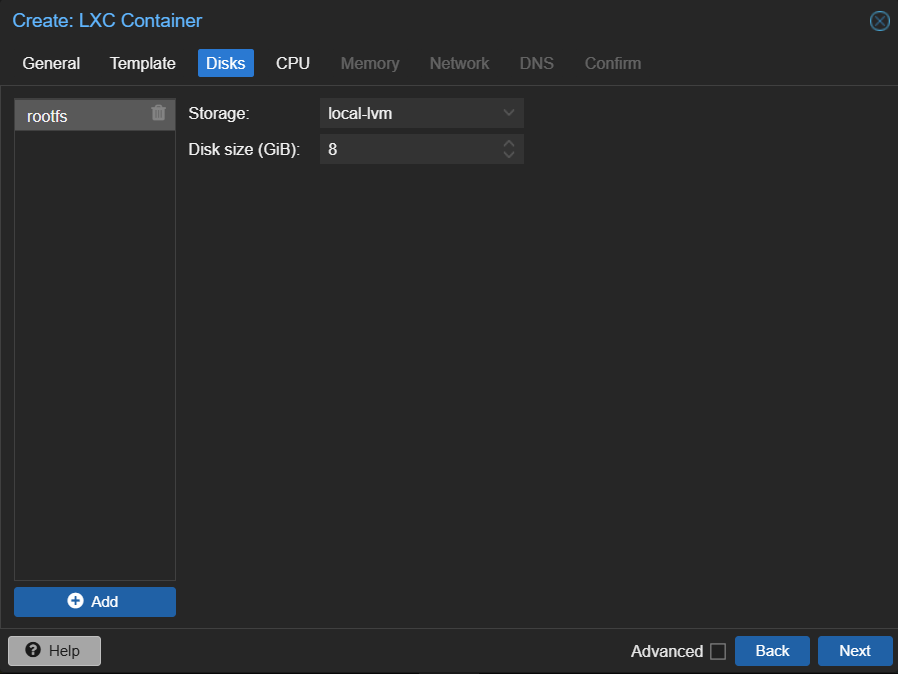
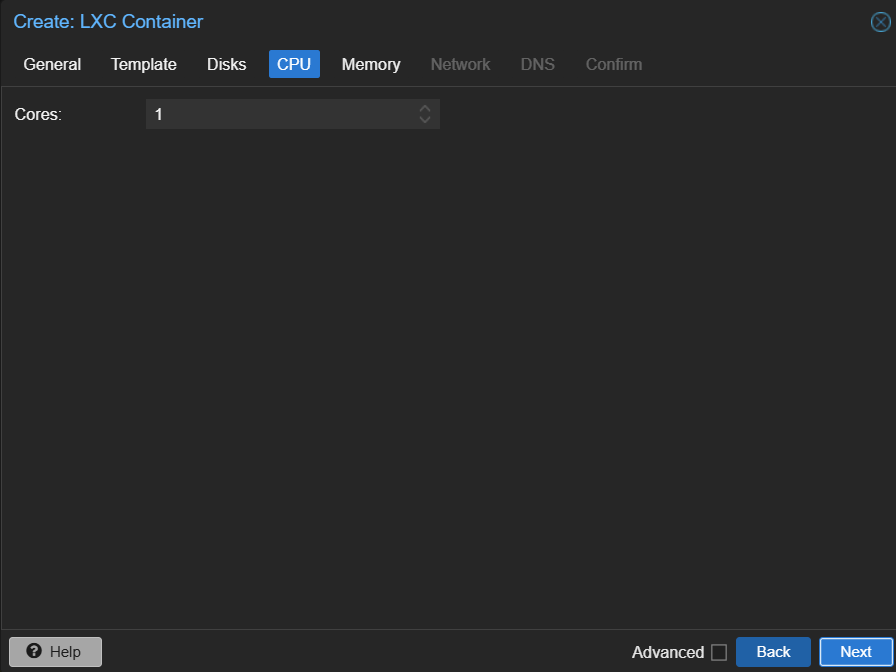
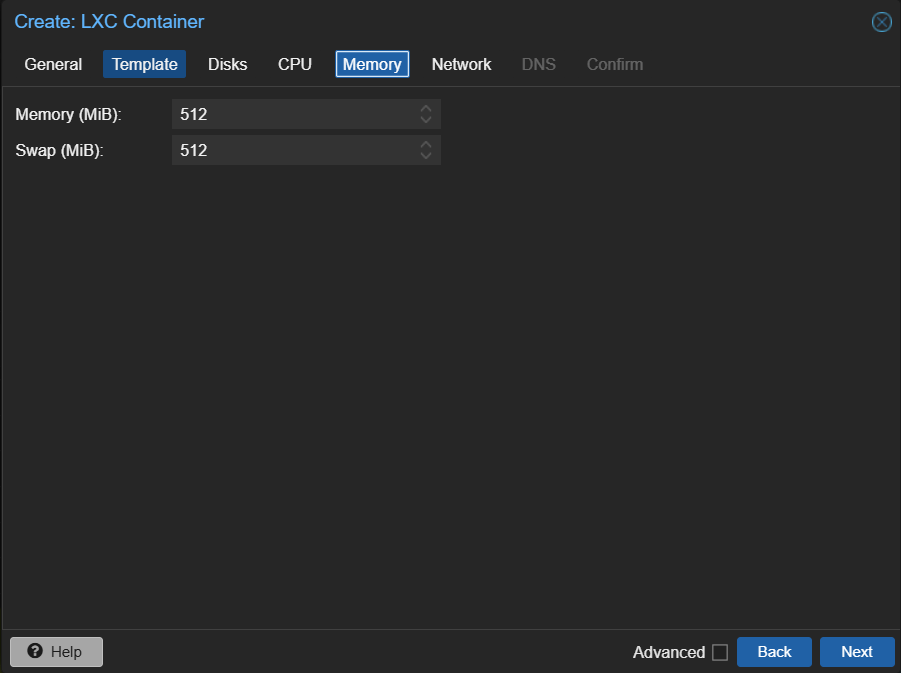
Next I created a new container using the Debian 12 template. I right clicked on my root node and selected “Create LC”. I then filled out the settings and chose to use the Debian 12 image I had downloaded.

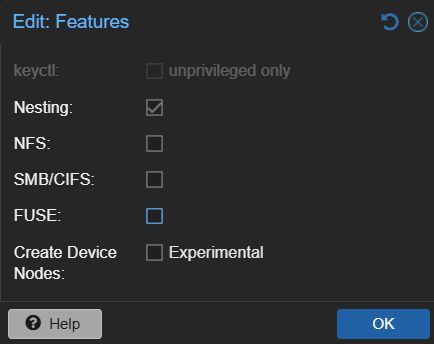
Once the container is created, select the container → options and double click features. Enable nesting, then click “ok”. This is required by systemd‑networkd and TUN.

Enabling Networking

When I first booted the container, it didn’t get an IP address. LXC containers sometimes need explicit network configuration. I opened a shell on the debian machine created a systemd‑networkd file

touch /etc/systemd/network/10-eth0.network

in that file I added the following content

[Match]
Name=eth0

[Network]
DHCP=yes

Save that file, then restart networking

systemctl restart systemd-networkd

I also want to make sure this happens automatically on each boot, so I ran the following commands

systemctl enable systemd-networkd
systemctl enable systemd-networkd-wait-online

After a reboot, the container correctly received an IP.

Enabling TUN Support

Next I needed to set up TUN since Tailscale uses a TUN device to create its encrypted WireGuard tunnel. LXC containers don’t expose /dev/net/tun by default, so I had to enable it manually. I opened a shell on the root node and opened up the config

vim /etc/pve/lxc/105.conf

I added:

lxc.cgroup2.devices.allow: c 10:200 rwm
lxc.mount.entry: /dev/net/tun dev/net/tun none bind,create=file
lxc.apparmor.profile: unconfined

The AppArmor change is necessary because TUN access is blocked by the default profile. After restarting the container, I verified TUN was available:

ls -l /dev/net/tun

Installing Tailscale

With the container set up, it was time to install Tailscale. My container did not have curl installed so first I installed that and then Tailscale:

apt install curl
curl -fsSL https://tailscale.com/install.sh | sh

The install took a bit of time but finished successfully. Next I brought up the client:

tailscale up --login-server https://private.rirak.com

This produced a registration URL. I copied that URL from the shell, pasted it in my browser, and that brought me to the familiar “Device Registration” page with a node registration command. I opened a new tab, opened a shell to the headscale node and ran the registration command

headscale nodes register --key <KEY> --user home

The shell from the Debian machine, now displayed a success message. Jumping back to the admin UI, I could now see two nodes.

Configuring Exit Node

With the Debian container registered, I could now turn it into a fully functional exit node.

Advertising and Approving Routes

By default, Tailscale won’t route traffic through a node unless it explicitly advertises itself as an exit node. In the headscale shell, I can list the current routes to see that there are none available (headscale nodes list-routes).

Back in the Debian machine shell, I updated the client to advertise itself as an exit node. I disabled Tailscale DNS because I already use AdGuard on my home network and didn’t want Tailscale to override my DNS settings.

tailscale set --advertise-exit-node
tailscale set --accept-dns=false

Going back to the headscale shell and re-running the same list routes command, now returns the routes being advertised by the node but they are not approved yet. Tailscale requires admin approval for any advertised routes.

I can go ahead and approve the route (-i is the node id and -r is the specific route)

headscale nodes approve-routes -i 2 -r "0.0.0.0/0"

Now if I list the routes again, they show up as approved

Now the node is recognized as an exit node.

Enabling IP Forwarding

Next we need to set up IP forwarding on the Debian machine. Without this, the node can advertise routes but won’t forward packets. In the Debian machine shell

echo "net.ipv4.ip_forward=1" >> /etc/sysctl.conf
echo "net.ipv6.conf.all.forwarding=1" >> /etc/sysctl.conf
sysctl -p

Enabling NAT

Finally, NAT is required so traffic from the VPN can reach the internet:

apt install iptables -y
iptables -t nat -A POSTROUTING -o tailscale0 -j MASQUERADE
iptables -A FORWARD -i tailscale0 -j ACCEPT
iptables -A FORWARD -o tailscale0 -j ACCEPT

and to make it persistent across restarts

apt install iptables-persistent -y

This ensures traffic from the VPN is translated correctly and survives reboots.

Testing the Exit Node

With all that setup complete, it was time to see if my phone would be able to use the exit node. I disconnected my phone from Wi‑Fi and checked my public IP. I then clicked the “Exit Node” banner in the Tailscale app and selected tailscale-node. Refreshing the IP check showed my home IP confirming everything worked.

Exposing Local Devices

The one last tweak I wanted to make to the setup is to allow access to my home router via the VPN. With my current setup, there is no way to access the router config from outside the house so this would make that possible.

On the Debian machine shell, I ran the following command to start exposing a route to the router.

tailscale set --advertise-routes=192.168.1.1/32

Back in the Headscale shell, if I list routes again there is a new unapproved route. I approved it similar to before. We need to list the previous route too to keep it approved.

headscale nodes approve-routes -i 2 -r "0.0.0.0/0,192.168.1.1/32"

Now back on my android device, when connected to the VPN and using the exit node, I can go to 192.168.1.1 and I get to my router’s config page. One thing to note here, if the client is on a network that also uses 192.168.1.x, local routing will override the VPN route. But on a mobile or commercial network this should work fine.

Wrap Up

The setup was involved and took a few attempts to figure out but now I have a fully private, self‑hosted VPN mesh with a working exit node and remote access to key devices. Next, I’m considering adding Tailscale to more containers and experimenting with RustDesk over the VPN.